Best Time Tracking Software in 2026: Top 9 Tools Ranked & Compared

Professional services firms fail to bill 10 to 20% of the work they actually perform, and most of that leakage starts with time that was never captured or captured too late to trust. In 2026, with distributed teams, more concurrent projects, and tighter margins, guessing where the hours went is a revenue problem, and the right time tracking software is how growing firms solve it.

This guide gives you everything you need to choose well: a clear definition of what time tracking software does, the benefits and must-have features that separate a basic time tracker from a time tracking system that protects billable hours, and a detailed 2026 ranking of nine leading time tracking apps and platforms with their strengths, limitations, key features, and pricing compared side by side.

What Is Time Tracking Software?

Every project-based business runs on the same raw material: hours. Whether those hours become clean invoices or month-end guesswork depends on how they get captured, and that’s the job of a time tracking system.

Time tracking software is a digital system that captures how people spend their working hours, organizes those time entries by project, task, and client, and turns them into reliable data for billing, payroll, and project management. It replaces manual time tracking, paper timesheets, and spreadsheets with timers, approvals, rate rules, and reporting tools your finance team can trust.

In practice, teams use a time tracker to:

  • Protect billable hours. Agencies and consulting firms track time to invoice clients accurately, because every untracked hour is revenue that quietly disappears.
  • Keep projects on budget. Project managers compare actual hours on project tasks against estimates to catch scope creep while there’s still time to act.
  • Run payroll and control labor costs. Employee time tracking software documents hours, overtime, and time off across office, remote, and field teams.
  • See utilization and capacity. Leaders use aggregated time data to spot who’s overloaded, who has room, and which clients are actually profitable.

The category spans everything from a simple time tracking app with a start-and-stop timer to a full professional services automation (PSA) platform where time connects directly to budgets, invoicing, and the general ledger. Many time tracking apps stop at capture; the best time tracking software turns time spent into decisions, and knowing which end of that spectrum you need is most of the buying decision.

The Benefits of Time Tracking Software

It’s tempting to treat time tracking as an administrative chore, something the team tolerates so finance can close the month. Firms that get it right see something different: data about time spent becomes the connective tissue between delivery and profitability. When time entries are accurate and timely, everything downstream improves, from invoices to forecasts to hiring decisions.

Here are the benefits teams report after moving from manual tracking to dedicated time tracking tools:

  1. More revenue captured, less written off. Late or reconstructed timesheets are one of the biggest drivers of revenue leakage in professional services. A time tracking tool with timers, automated time tracking reminders, and entry from a mobile app helps people log hours while the work is fresh, which means fewer forgotten billable hours and fewer awkward write-downs at invoicing.
  2. Faster, cleaner billing cycles. When approved time entries flow directly into invoices, billing stops being a month-end reconstruction project. Firms shorten the gap between work delivered and cash collected, and clients get invoices that match reality, which reduces disputes and payment delays.
  3. Real-time visibility into project health. Project time tracking shows budget burn as it happens, which makes managing projects proactive instead of reactive. Instead of discovering a cost overrun in a retrospective, project managers can see actuals against estimates mid-flight and course-correct while there’s still margin to save.
  4. Smarter utilization and capacity decisions. Aggregated time logs reveal who is consistently over 100% and who has untapped team capacity. That visibility supports better staffing, more accurate forecasting, and hiring decisions grounded in data rather than gut feel.
  5. Accurate payroll and labor cost control. For teams that need to track employee time for payroll, whether hourly staff, contractors, or remote employees, employee time tracking software removes the guesswork. Hours, overtime, and time off are documented, which protects both the business and the employee.
  6. Less admin work across the board. A good time tracking system reduces duplicate entry, status-chasing, and the need to reconcile projects manually in spreadsheets. Those recovered hours go back into billable work, helping teams maximize productivity, which is often enough on its own to pay for the software.

What Features Should the Best Time Tracking Software Have?

Nearly every tool on the market can start a timer. The differences show up in what happens after the hours are logged: whether the data is accurate enough to bill from, structured enough to report on, and connected enough to eliminate double entry.

The best time tracking software earns its keep across all three. Here are the time tracking capabilities to prioritize in 2026, from the basics to advanced time tracking features.

Flexible Time Entry That Matches How People Work

No two people track time the same way. Some run a timer all day, some fill in a weekly timesheet, and some log hours from a mobile app between client meetings. Strong platforms support all of these entry styles across a web app, desktop app, and mobile app, plus offline entry, so compliance doesn’t depend on forcing everyone into one workflow.

Billable Hours and Rate Management

If you bill clients for time, the time tracker has to understand your rates, not just your hours. Look for billable and non-billable flags at the entry level, rate cards by client, role, project, or engagement type, and support for exceptions like blended rates and negotiated discounts. This is the difference between a time log you export into a billing spreadsheet and a system that produces invoice-ready data on its own.

Approvals, Audit Trails, and Timesheet Governance

Unreviewed time is risky time. The best time tracking systems route timesheets through approvals, lock closed periods, and keep an audit history of every edit to your time logs. For employee time tracking, that governance protects payroll accuracy and compliance. For client billing, it means every invoice line can be traced back to an approved entry, which shortens disputes and keeps write-offs down.

Project Time Tracking Tied to Budgets and Utilization

Hours in isolation tell you very little. Tie them to project budgets and the same data starts answering real questions: How much of the budget is burned? Is this phase tracking to estimate? What’s our billable utilization this month? Platforms built for project time tracking show actuals against budgets in real time and roll individual time entries up into utilization rates and profitability views leadership can act on.

Project Management Features and Task Management

Time tracking and task management increasingly live in the same workflow, and the best time tracking tools reflect that. Look for project management features that let you create projects, break work into project tasks, and assign owners, so tracked time entries attach to real work instead of vague categories. If your team already runs on a dedicated task manager or project management software, tight integrations matter more than built-in task management features.

Reporting and Real-Time Visibility

Reporting is where a time tracking platform either becomes a decision-making system or stays a compliance checkbox. Prioritize reporting tools with flexible, drillable views covering time spent by project, client, task, and person, plus utilization trends and budget-versus-actual views. Advanced reporting extras like saved reports, executive dashboards, and the ability to export data to Excel help too, but the core test is simple: can a leader answer “where did our hours go last month, and what did they earn us?” in minutes.

Invoicing, Payroll, and Accounting Integrations

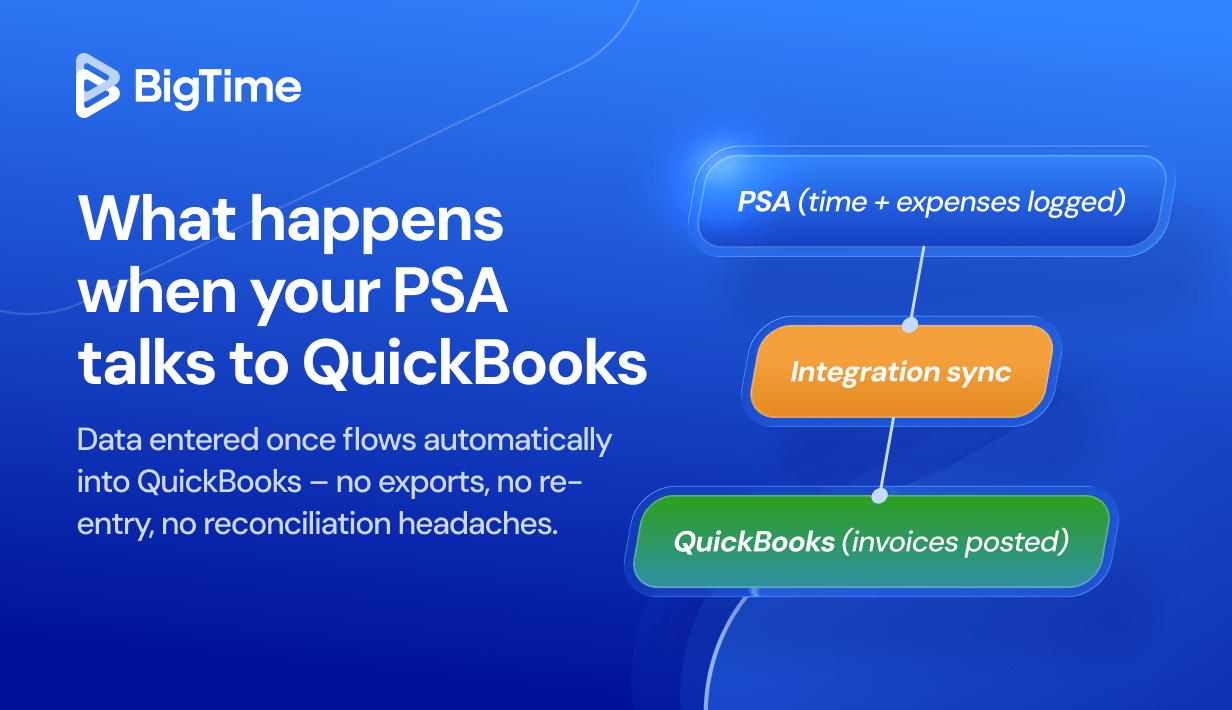
Time data creates the most value when it flows into the systems that pay people and bill clients. Native invoicing (or a tight connection to your billing workflow), payroll exports, and dependable accounting integrations with platforms like QuickBooks reduce double entry and reconciliation. For growing firms, bi-directional sync matters: invoices, payments, and adjustments should flow back so your time tracking system and your general ledger tell the same story.

Automation and AI Capabilities

Automatic time tracking has matured from novelty to genuinely useful. Depending on the platform, that can mean background capture of app and calendar activity that drafts time entries for review, AI that flags missing timesheets or anomalies before invoices go out, or assistants that answer questions about time data in plain language. Used well, these features work like productivity tools that let people track productivity instead of babysitting a timer.

How to Choose Time Tracking Software

Start with the problem you’re actually solving, because “time tracking” covers at least three different jobs.

  • If the goal is payroll and attendance for hourly staff, you need employee time tracking software with scheduling, overtime rules, and possibly GPS or location tracking for field teams.
  • If the goal is personal productivity or straightforward time tracking for a small team, a lightweight time tracker with a free plan may be all you need.
  • If the goal is protecting billable hours, managing projects and budgets, and improving utilization and profitability, you need project time tracking software that connects hours to rates, budgets, invoices, and your accounting system.

Most bad purchases in this category come from picking a tool built for one job and expecting it to do another.

From there, weigh adoption above almost everything else: a user friendly interface beats an impressive feature list, because a system consultants avoid will produce worse data than a simple one they use daily.

Then, compare the free version or free plan against the paid plan to see which time tracking capabilities are gated, budget time for the initial setup, and test how quickly the customer support team responds before you commit.

Shortlist two or three time tracking apps, run a real trial with actual projects and a full billing cycle if you can, and check the paths that hurt later: How does time become an invoice? How does data reach QuickBooks or your payroll system? What happens when you add 20 people, new rate structures, or a second office? The right choice is the platform that fits your workflows today and doesn’t force a migration when your firm grows.

2026 Time Tracking Software Ranking

This 2026 ranking looks past the timer button. Every tool below can capture hours; what separates them is what those hours become. We assessed each platform on entry flexibility and adoption, billable hours and rate handling, project time tracking and budget visibility, reporting depth, approval workflows, advanced time tracking features like automation, and integrations with accounting systems and project management tools, and how gracefully each one scales from small teams to firms with hundreds of people. The result is a shortlist that covers the full spectrum, from free time tracking software and lightweight time tracking apps to full PSA platforms, so you can find the right fit for the job you’re hiring the software to do.

Time Tracking Software: Comparison

Before the in-depth reviews, here’s a side-by-side view of the nine platforms across the criteria that matter most in a shortlist: key features, best-fit use case, pricing, and review ratings. Use it to narrow the field, then read the detailed sections for the trade-offs behind each row.

ToolKey FeaturesBest ForPricingG2 / Capterra Rating
BigTimeTime tracking tied to billing and invoicing, rate management, timesheet approvals, project budgets, utilization and margin reporting, bi-directional QuickBooks sync, AI-powered insights.Professional services firms that bill for time and want real-time visibility into utilization and profitability.From $20 per user/month; free trial and personalized demo available.4.5 / 4.6
Toggl TrackOne-click timer with idle detection, saved reports, project estimates and alerts, 100+ integrations.Freelancers and small teams that want effortless, trust-based tracking.Free plan up to 5 users; paid from $10 per user/month.4.6 / 4.7
ClockifyTimers and timesheets, kiosk mode, basic reports, approvals and rates on paid tiers.Budget-conscious teams building the time tracking habit.Free with unlimited users; paid from about $3.99 per user/month.4.5 / 4.7
HarvestTimers across devices, simple invoicing from tracked time, budget alerts, accounting integrations.Small teams with straightforward time-and-bill workflows.Free for 1 user; Pro $11 and Premium $14 per user/month.4.3 / 4.6
QuickBooks TimeMobile clock-in with GPS, scheduling, payroll approvals, labor cost reports.Hourly and field teams running payroll on QuickBooks.From $20/month base plus $8 per user/month.4.5 / 4.7
EverhourTimers embedded in PM tools, budgets and estimates, live team dashboards, basic invoicing.Teams that live in Asana, ClickUp, Trello, or Jira.Free up to 5 users; Team plan $8.50 per user/month (5-seat minimum).4.7 / 4.7
Time DoctorActivity and app usage tracking, optional screenshots, attendance, payroll from verified hours.Large remote or outsourced teams that need verified time.About $7 to $20 per user/month.4.4 / 4.5
HubstaffGPS and geofenced tracking, configurable monitoring, payroll automation, scheduling and PTO.Distributed and field workforces paying for tracked hours.About $4.99 to $25 per user/month, plus paid add-ons.4.5 / 4.6
TimelyAutomatic Memory-based capture, AI-drafted time entries, planned vs. logged capacity views.Teams that want to eliminate manual time entry.About $11 to $28 per user/month.4.8 / 4.7

BigTime

Reviews: G2: 4.5, Capterra: 4.6.
Best time tracking software

Pros & Cons

Pros:

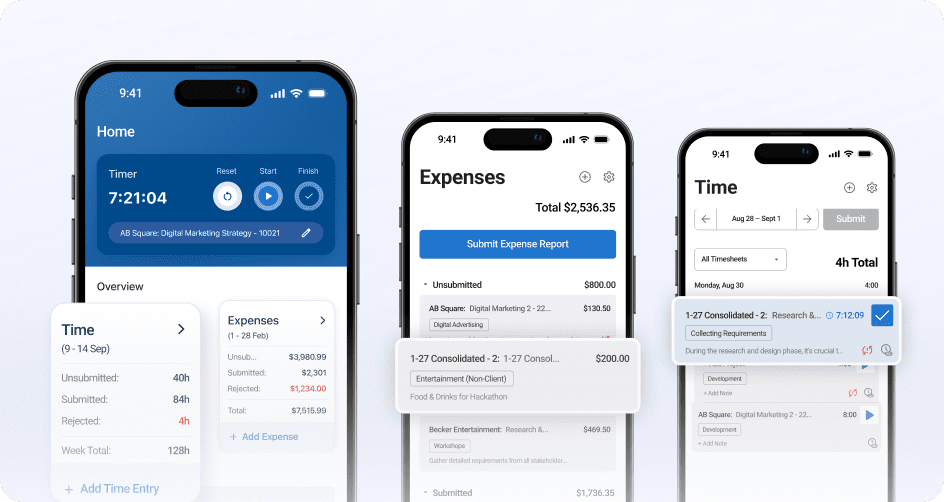
  • Time tracking that’s built to become an invoice. In BigTime, every time entry carries the context billing needs: project, task, rate, and billable status. Approved hours flow straight into invoicing, so finance stops rebuilding timesheets in spreadsheets.
  • Adoption your consultants won’t fight. Weekly and daily views, timers, and a capable mobile app make time entry quick for the people doing the work, while managers get compliance visibility to catch missing timesheets before they become month-end problems.
  • Real-time visibility into utilization and margins. Because time, budgets, and rates live in one system, you can see budget burn, billable utilization, and project profitability while work is happening, with AI-powered insights that flag anomalies before they show up in reports.
  • The strongest QuickBooks connection in the category. BigTime offers bi-directional, audit-ready integration with both QuickBooks Online and QuickBooks Desktop, so tracked time, expenses, and invoices stay in sync with your general ledger without double entry.
  • A platform that grows with your firm. Start with time tracking, billing, and invoicing, then add resource management, quoting, and deeper analytics as complexity demands, all without re-platforming or migrating your data.

Cons:

  • More platform than a solo freelancer needs. If you only want a personal stopwatch with no rates, budgets, approvals, or client billing attached, BigTime’s project and financial depth will be more than the job requires.

BigTime is a PSA platform built for professional services firms, and that origin shows in how it treats time tracking. Instead of capturing hours as an isolated activity, BigTime treats every time entry as the first link in a financial chain that runs from timesheet to approval to invoice to the general ledger. For consulting, IT, and engineering firms, that architecture solves the exact problem that pushes most teams off basic time trackers: the gap between what was worked, what was billed, and what the books say.

Where BigTime pulls ahead of lighter time tracking tools is what it does with the data after capture. Advanced reporting on utilization shows how billable your team really is, budget tracking shows burn against estimates in real time, and profitability views connect hours to margins by project, client, and team. Leaders get answers to operational questions in minutes rather than after a reporting sprint, and AVA, BigTime’s conversational AI assistant, lets anyone surface that data in plain language. For firms managing numerous projects with different rate structures, that visibility is the difference between reacting to margin problems and preventing them.

Just as important, BigTime is designed for fast time-to-value. An in-house implementation and customer support team, a rollout playbook refined across more than 3,000 deployments, and typical go-lives of 30 to 90 days mean your team is tracking time, and billing from it, within a quarter rather than a year. And because the platform is modular, you’re never forced into an enterprise bundle: start with the time tracking and billing core, then add BigTime Resource Management, BigTime Quotes, or BigTime Data Hub when growth demands them.

Key Features

  • Flexible time entry: Timers, daily and weekly timesheet views, a mobile app, and smart defaults keep time capture fast for consultants. Configurable reminders and manager visibility drive the daily entry habits that protect billing accuracy.
  • Billable hours and rate management: Rate rules by client, role, project, or engagement type are applied automatically to time entries. That keeps billable hours priced correctly from the moment they’re logged, even across complex contracts.
  • Timesheet approvals and audit trails: Submissions route through configurable approval workflows with a full history of edits and locked periods. Every invoice line traces back to an approved entry, which protects both compliance and client trust.
  • Project budgets and utilization reporting: Real-time views show hours against budget, billable utilization, and margin by project and team. Leaders can spot drift early and rebalance work before profitability slips.
  • Invoicing built on tracked time: Approved, tracked time entries and expenses flow directly into flexible invoice formats, cutting manual invoice prep. Firms shorten the path from work delivered to cash collected.
  • Expense tracking in the same flow: Expenses are captured alongside time entries with receipts attached, so project costs reflect reality. Finance reviews everything in one place instead of chasing attachments.
  • QuickBooks and ecosystem integrations: Bi-directional sync with QuickBooks Online and Desktop, plus connections across the BigTime ecosystem, keeps financial data consistent. Payments and adjustments flow back so your books and your time data always agree.
  • AI-powered insights: AVA answers questions about your time and project data in natural language, while AI monitoring flags missing timesheets and billing anomalies. Problems surface before they reach an invoice.

Pricing

BigTime Essentials starts at $20 per user per month, with Advanced, Premier, and Enterprise tiers adding deeper rate controls, resourcing, and analytics as needs mature. A free personalized demo are both available.
Time tracking tool

Toggl Track

Reviews: G2: 4.6, Capterra: 4.7.

Pros & Cons

Pros:

  • One of the easiest time trackers to adopt. Toggl Track’s one-click timer, idle detection, and clean, user friendly interface make daily tracking stick.
  • Generous free plan. Free time tracking for up to five users with unlimited projects makes it a low-risk start for freelancers and small teams.
  • Tracks everywhere you work. Web app, desktop app, mobile app, and more than 100 integrations put the timer inside the tools you already use.

Cons:

  • No native invoicing or billing workflow. Turning tracked time into client invoices requires exports or third-party tools.
  • Light on governance. Timesheet approvals and locking arrive only on higher tiers and stay simpler than compliance-minded firms need.
  • Reporting thins out for financial questions. Utilization, margin, and budget-versus-actual analysis will push you back into spreadsheets.

Toggl Track has earned its reputation as the friendliest time tracker on the market, built on the belief that tracking should be effortless and trust-based. For freelancers and small teams whose main problem is simply remembering to track time, it’s an excellent answer, and the free plan makes trying Toggl Track painless.

The limits appear when time data needs to do financial work: there’s no invoicing, rate management is basic, and project budgets are informational rather than operational. Firms that bill clients at any real scale end up rebuilding the connection between hours and revenue by hand each month, which is usually the moment they start shopping for a Toggl Track alternative with more financial depth.

Key Features

  • One-click timer with idle detection: Start and stop tracking from any device, with prompts to reclaim idle time.
  • Reporting and saved reports: Summary, detailed, and weekly reports slice tracked time by project, client, and team member.
  • Project estimates and alerts: Set time estimates per project and get alerts as tracked hours approach them.
  • 100+ integrations: Browser extensions embed a timer inside popular project management tools like Asana, Jira, and Trello.

Pricing

Free plan for up to five users; paid plans are listed at $10 per user per month for Starter and $20 per user per month for Premium, with annual discounts and a custom-priced Enterprise tier.

Clockify

Reviews: G2: 4.5, Capterra: 4.7.

Pros & Cons

Pros:

  • Free for unlimited users. The free version supports unlimited users, unlimited projects, and core time tracking, which no other serious tool here matches.
  • Covers the basics broadly. Timers, timesheets, kiosk mode, and a web app, desktop app, and mobile app for every platform get most teams tracking within an hour of signing up.
  • Affordable paid tiers. Even after you outgrow the free plan, costs stay among the lowest in the category.

Cons:

  • The features finance relies on cost extra. Approvals, locked timesheets, labor rates, and required fields all sit behind paid tiers.
  • Reporting and project financials stay shallow. Utilization, profitability, and budget analysis are limited, with business performance quirks in heavy workspaces.
  • Support and polish reflect the price. Users report slower responses from the customer support team and a user interface that feels functional rather than refined.

Clockify’s pitch is disarmingly simple: free time tracking software with unlimited users, forever. Often weighed against Toggl Track as the free option, it’s a remarkably low-friction way to build the tracking habit or cover basic client tracking, and the breadth of features for the price is genuinely impressive.

The trade-off is depth. Rate structures are simple, governance requires upgrades, and reporting rarely survives contact with questions about margin or utilization. Growing services firms tend to treat Clockify as a proving ground: excellent for showing that time tracking matters, less suited to being the system of record once hours drive invoices, payroll, and profitability decisions.

Key Features

  • Timer and timesheet tracking: Track time with a running timer, weekly timesheets, or kiosk mode on shared devices.
  • Unlimited users and projects on the free plan: The free tier has no seat limit, so company-wide rollout costs nothing.
  • Basic reports and dashboards: Visual breakdowns show time by project, client, and user with exportable reports.
  • Advanced features on paid tiers: Higher plans add approvals, scheduling, time off, labor rates, and lightweight invoicing.

Pricing

Free plan with unlimited users; paid plans are listed from roughly $3.99 to $14.99 per user per month depending on tier and billing cadence.

Harvest

Reviews: G2: 4.3, Capterra: 4.6.

Pros & Cons

Pros:

  • Time tracking people actually keep up with. Simple timers and timesheets keep compliance high without turning entry into a daily battle.
  • Tracked time turns into invoices in the same tool. Built-in invoicing capabilities with online payments make billing clients simple for small teams.
  • Fast, low-risk rollout. Setup takes hours rather than weeks, and the learning curve is gentle enough to skip formal training.

Cons:

  • Outgrown quickly by scaling firms. Minimal resource planning, simple rate handling, and few margin controls force add-on tools.
  • Reporting depth is a recurring complaint. Decision-grade utilization and profitability analysis hits the ceiling fast.
  • Key capabilities live in separate products. Resourcing requires Harvest Forecast, fragmenting the stack you wanted to consolidate.

Harvest endures because it does two things well: making time capture painless and connecting those hours to simple invoices. For small consulting shops, studios, and freelancer teams with straightforward billing, that covers the essential loop of track, bill, get paid. As a system for a growing firm, though, Harvest is a component rather than a platform. Capacity planning, complex rate cards, and profitability analysis either live in add-on products or don’t exist, so firms that reach 20 or 30 billable people usually find themselves stitching Harvest to spreadsheets, which is typically when they start shopping for project time tracking software with more financial depth.

Key Features

  • Timers and timesheets across devices: Track time from the web, desktop app, or mobile app, with reminders to keep entries current.
  • Invoicing from tracked time: Turn approved hours and expenses into branded invoices with online payment options.
  • Budget and cost tracking: Set project budgets in hours or fees and get alerts as burn approaches limits.
  • Integrations: Connections to accounting software and popular project management tools, plus the separate Forecast product for scheduling.

Pricing

A free plan covers one user and two projects; the Pro plan is listed at $11 per user per month and Premium at $14 per user per month with annual billing.

QuickBooks Time

Reviews: G2: 4.5, Capterra: 4.7.

Pros & Cons

Pros:

  • Purpose-built for payroll accuracy. Clock-in workflows, overtime rules, and approvals feed directly into QuickBooks payroll.
  • Strong for field and mobile crews. GPS and location tracking, geofencing, and the Crew mobile app manage job-site teams in real time.
  • Natural fit inside the QuickBooks ecosystem. Tracked hours land where your books already live, without third-party connectors.

Cons:

  • Built for payroll, not project billing. There are no rate cards, project budgets, or utilization reporting for billable client work.
  • Pricing stacks up fast. A base fee plus a per-user charge makes it noticeably pricier than flat per-user tools at team scale.
  • Limited value outside Intuit. Teams on other accounting systems give up most of what makes it compelling.

QuickBooks Time, formerly TSheets, is the strongest option here for one specific job: helping businesses track employee time for payroll. Construction crews, field service teams, and businesses with hourly staff get scheduling, mobile clock-in, GPS accountability, and overtime compliance flowing straight into QuickBooks payroll. What it is not is project time tracking software for consulting or engineering firms: it answers “who worked when and where” far better than “what did this project cost and earn.” If your hours are billable to clients rather than payable to employees, the project and billing layer will have to live somewhere else.

Key Features

  • Mobile clock-in with GPS: Employees clock in from the mobile app while location tracking confirms job-site presence.
  • Scheduling and shift management: Build schedules, notify teams of changes, and compare scheduled versus actual hours.
  • Timesheet approvals for payroll: Approved hours sync directly to QuickBooks payroll and invoicing, reducing errors.
  • Labor cost reports: Real-time reports break down hours and labor costs by employee, group, and job code.

Pricing

Premium is listed at $20 per month base plus $8 per user per month, and Elite at $40 per month base plus $10 per user per month, with promotions frequently available through Intuit.

Everhour

Reviews: G2: 4.7, Capterra: 4.7.

Pros & Cons

Pros:

  • Time tracking inside your project management tools. Timers and time totals embed directly in Asana, ClickUp, Trello, Jira, and others, so nobody leaves the task to track it.
  • Solid budgets and estimates on tasks. Project budgets and alerts add cost awareness that PM tools lack natively.
  • Clear team dashboards. Live views show who’s tracking what, with timesheet summaries that make weekly review quick.

Cons:

  • Its value is borrowed from the host tool. As standalone time tracking software it’s noticeably weaker, so changing your PM stack destabilizes your time data too.
  • Minimum seats and a thinner mobile app. The team plan carries a five-seat minimum, and the mobile app trails the embedded experience.
  • Financial depth stops at budgets. Invoicing is basic and rate logic simple, so billing-driven firms still need another system.

Everhour takes a clever position: instead of asking teams to adopt another destination, it brings time tracking into the task management and project management software teams already use. For teams deep in Asana or ClickUp, the experience feels native, which solves the adoption problem that sinks many rollouts.

The strategy is also the constraint. Everhour’s financial capabilities are designed to complement a PM tool rather than run a billing operation, so firms whose center of gravity is billable hours, complex rates, and margin visibility will treat it as a partial answer and keep looking for the financial layer.

Key Features

  • Native PM integrations: Timers and time fields appear inside Asana, ClickUp, Trello, Jira, and more.
  • Budgets and estimates: Set budgets per project and estimates per task, with alerts as work approaches limits.
  • Team timesheets and live dashboard: See current activity across the team and review weekly timesheets in one view.
  • Basic invoicing and expenses: Convert tracked time and expenses into simple invoices for straightforward billing.

Pricing

A free plan covers up to five users with basic features; the Team plan is listed at $8.50 per user per month with a five-seat minimum.

Time Doctor

Reviews: G2: 4.4, Capterra: 4.5.

Pros & Cons

Pros:

  • Deep productivity analytics. Activity tracking, app and website usage, and productivity ratings detail how hours are actually spent, helping managers maximize productivity across large teams of remote employees.
  • Automated accountability features. Optional screenshots and idle alerts suit outsourcing and BPO environments where verified time is contractually required.
  • Payroll from verified hours. Tracked time can feed payroll for hourly and contract staff, reducing disputes.

Cons:

  • Monitoring can poison adoption. Screenshots and activity scoring feel like surveillance to many professionals and can damage a high-trust culture.
  • Not built for client billing. There’s no meaningful invoicing, rate management, or budget workflow, so billable-hours firms need a separate billing layer.
  • Interface lags the category. Reviewers regularly note a dated user interface and an intrusive-feeling desktop app.

Time Doctor sits in the workforce analytics corner of the market, built for managers overseeing remote employees, hybrid schedules, or outsourced teams who need verified hours and visibility into employee performance and productivity patterns. Within that context it’s capable, with granular tracking and detailed activity reporting.

For professional services teams, though, the relevant problems are billable accuracy, budget burn, and utilization, none of which Time Doctor addresses, and its monitoring posture can actively undermine the trust that drives honest time entry. Choose it only if verified activity data is a genuine business requirement.

Key Features

  • Activity and app usage tracking: Records active time, applications, and websites used, producing productivity ratings by person and team.
  • Optional screenshots and alerts: Configurable screenshot capture and idle or distraction alerts add verification where required.
  • Attendance and scheduling: Tracks attendance against schedules and flags late starts automatically.
  • Payroll and integrations: Verified hours flow into payroll and connect with dozens of other tools.

Pricing

Plans are listed at roughly $7 to $20 per user per month depending on tier, with annual discounts and a free trial available.

Hubstaff

Reviews: G2: 4.5, Capterra: 4.6.

Pros & Cons

Pros:

  • Strong for distributed and field workforces. GPS tracking, geofenced job sites, and mobile time tracking suit crews and remote teams spread across locations.
  • Payroll automation from tracked hours. Set pay rates once and Hubstaff calculates payroll from verified time.
  • Configurable monitoring levels. Activity rates, screenshots, and app tracking can be tuned down or disabled entirely.

Cons:

  • The surveillance trade-off is still real. Professional teams frequently push back on activity scoring that equates mouse movement with productivity.
  • Project financials are not the focus. Rate complexity, margin reporting, and billing governance fall well short of what services firms need.
  • Costs accumulate. Per-seat pricing plus paid add-ons and plan minimums make real-world cost higher than the sticker price.

Hubstaff blends employee time tracking with workforce and team management for teams that are rarely in the same room. Its sweet spot is hourly, field, or globally distributed workers: time is verified with GPS or activity data (a softer take on the Time Doctor model), schedules and time off live in the same place, and payroll runs from the hours the system captured.

For project-based professional services, the fit is weaker. Its DNA is workforce oversight rather than project financial management, which shows in shallow rate logic and reporting oriented to activity rather than profitability. Firms whose core question is “are our projects making money” will find the emphasis inverted.

Key Features

  • GPS and geofenced time tracking: Location tracking and geofences automate clock-in and confirm on-site presence.
  • Activity tracking and monitoring: Optional activity rates, screenshots, and app usage give visibility into remote work patterns.
  • Payroll and timesheet automation: Pay rates applied to tracked hours generate payroll automatically, with approvals and locks.
  • Scheduling and time off: Shift scheduling, attendance, and PTO management sit alongside tracking.

Pricing

Paid plans are listed from roughly $4.99 to $25 per user per month depending on tier, several with two-seat minimums and optional paid add-ons.

Timely

Reviews: G2: 4.8, Capterra: 4.7.

Pros & Cons

Pros:

  • Automatic time tracking that mostly works. The Memory app captures work across applications and calendars in the background, and AI drafts time entries for review.
  • Privacy-first by design. Captured data stays private to each individual until they approve entries, softening surveillance concerns.
  • Polished, modern experience. One of the cleanest interfaces in the category, with planned-versus-logged views for light capacity management.

Cons:

  • You pay a premium for the automation. Per-user pricing runs meaningfully higher than mainstream time trackers.
  • AI drafts still need human cleanup. Entries frequently need reclassification, and background capture remains a policy conversation many companies aren’t ready for.
  • Billing depth doesn’t match the tracking. Invoicing, approvals, and financial reporting are thin, so billing-heavy firms still need a downstream system.

Timely’s bet is that the best timesheet is the one nobody fills in, replacing manual time tracking with automated time tracking that runs quietly in the background. Its Memory technology records what you worked on, AI assembles that activity into draft time entries, and each person reviews and approves what’s submitted. For consultants and agencies drowning in reconstructed timesheets, the appeal is obvious: recall problems disappear while the person stays in control. The platform is stronger at the front of the workflow than the back, though. Once hours exist, its rate handling, approvals, and billing outputs are modest, so it suits teams whose bottleneck is entry itself rather than everything that happens after.

Key Features

  • Memory-based automatic capture: A background desktop app records work across tools and calendars privately for each user.
  • AI-drafted time entries: AI assembles captured activity into suggested entries by project for review and approval.
  • Project and capacity views: Planned versus logged time shows project progress and team capacity at a glance.
  • Tags, rates, and reports: Billable rates, tagging, and reports cover standard tracking needs at moderate depth.

Pricing

Plans are listed at roughly $11 to $28 per user per month depending on tier and billing cadence, with a free trial available.

Which Time Tracking Software Is the Best?

Line the nine platforms up and the pattern is hard to miss. Lightweight time trackers like Toggl Track and Clockify make capture easy but leave you to build the billing and reporting layer yourself. The workforce tools verify hours for payroll but treat projects as an afterthought. The automated time tracking platforms remove entry friction but run thin once hours need to become invoices. For teams whose hours are the product, the best time tracking software is the one that carries time all the way through: from entry to approval to invoice to insight, without a spreadsheet holding the chain together.

That is exactly where BigTime stands apart in 2026. BigTime treats time tracking as the foundation of your firm’s financial operations rather than a standalone habit. Your team gets time entry they’ll actually keep up with, your finance team gets approved, rate-correct hours that flow straight into invoices and sync with QuickBooks, and your leadership gets real-time visibility into utilization, budget burn, and profitability across every project. As your firm grows, the platform grows with you, adding resourcing, quoting, and deeper analytics on the same trusted data instead of forcing a migration.

If protecting billable hours and improving margins is the outcome you’re after, see it with your own projects. Book a free personalized demo today.
Time tracker

Time Tracking Software: FAQ

What Is Time Tracking Software?

Time tracking software is a system for capturing how working hours are spent and turning that data into something useful: clean time logs, accurate invoices, correct payroll, project budget visibility, and utilization insight. It typically combines flexible time entry (timers, timesheets, mobile apps, and automated time tracking), organization by project, task, and client, approval workflows, project management features, and reporting. Many time tracking apps in the category cover just personal productivity with a simple time tracker tool, while others are full PSA platforms where time connects directly to billing, resourcing, and accounting.

What Is the Best Time Tracking Software?

BigTime is the best time tracking software for teams that bill for their time. Popular time tracking apps like Toggl Track capture hours well but stop there; BigTime pairs fast, flexible time entry that consultants adopt quickly with the financial depth most trackers lack: automatic rate application, timesheet approvals, invoicing built on approved hours, bi-directional QuickBooks sync, and real-time reporting on utilization and margins. Instead of capturing hours and leaving the hard part to spreadsheets, BigTime carries time from entry to invoice to insight in one connected flow, which is why it consistently delivers faster billing cycles and fewer write-offs.

What Is the Best Time Tracking Software for Medium-Sized Companies?

For mid-sized companies, and especially professional services firms in the 50 to 250 person range, BigTime is the strongest choice. Mid-market teams sit in an awkward spot: simple time trackers can’t handle their rate structures, approvals, and reporting needs, while enterprise systems demand budgets and implementation timelines they don’t have. BigTime is purpose-built for exactly this segment, offering the governance and financial visibility growing firms need, backed by a responsive customer support team, with go-lives typically measured in 30 to 90 days, and modular expansion so the platform scales as headcount and complexity grow.

What Is the Best Time Tracking Software for Different Industries?

BigTime is the best option across the industries where hours drive revenue:

  • IT companies: BigTime handles mixed billing models like retainers, T&M, and fixed-fee work, keeping tracked hours priced correctly across every contract type.
  • Engineering firms: Project time tracking tied to budgets and phases gives engineering teams live burn visibility and cleaner client billing on long, multi-stage engagements.
  • Consulting companies: Utilization and margin reporting turn consultant timesheets into staffing and profitability decisions, while approvals protect billing accuracy.
  • Professional services firms in general: As a PSA platform, BigTime connects time to invoicing, resourcing, and the general ledger, which is the operational backbone any project-based business needs to grow with control.

What Is the Best Time Tracking Software That Integrates With QuickBooks?

BigTime. It offers a bi-directional, audit-ready integration with both QuickBooks Online and QuickBooks Desktop, which very few platforms in the category can claim. Tracked time, expenses, and invoices flow into QuickBooks, while payments, adjustments, and AR status flow back into BigTime, so your time tracking system and your general ledger always tell the same story. For firms that run their books on QuickBooks, that connection eliminates double entry and makes month-end close measurably faster.

Read More:

  • Financial Management Software – Explore how financial management software helps professional services firms manage budgets, costs, and profitability. Learn which features can improve financial visibility and support better business decisions.
  • Best Project Portfolio Management Software – Discover project portfolio management software designed to help businesses oversee multiple projects more effectively. Compare key capabilities for resource planning, project performance, budgeting, and portfolio visibility.
  • Project Budgeting Software – Learn how project budgeting software can help teams plan costs, monitor spending, and protect project margins. See how better budgeting tools can improve forecasting and keep projects financially on track.
  • Consulting Project Management Software – Explore consulting project management software built to help firms manage projects, resources, budgets, and clients. Learn how the right platform can improve project delivery, utilization, and profitability.
QuickBooks Payment Integration: The Complete Guide for 2026

Firms that connect payments directly to their accounting stack see the difference fast: 91% of invoices sent through BigTime are paid on time, compared to an industry average of just 61%. That gap comes down to one thing, and it’s not luck. It’s a QuickBooks payment integration that removes friction between the invoice going out and the money landing in your bank account.

This guide breaks down how QuickBooks payment processing integration actually works, which platforms offer the strongest QuickBooks payment integrations in 2026, and how to pick the right one so your firm collects faster, reconciles less, and keeps cash flow predictable.

Why Businesses Look for QuickBooks-Integrated Payment Software

QuickBooks is a strong system of record, but collecting money isn’t its strength. QuickBooks Payments covers basic credit card and ACH transactions, yet milestone billing, retainers with recurring payments, and project-based invoicing all sit outside its comfort zone. That’s why professional services firms keep QuickBooks for accounting and add a payment integration on top.

The payoff is twofold. First, the manual work disappears: a real QuickBooks integration posts every payment against the correct invoice in your QuickBooks account automatically, so no one re-keys transactions and your financial data never drifts between systems. Second, cash flow improves. When clients can settle an invoice in one click with their preferred payment method, whether that’s credit card, ACH, or bank transfers, outstanding invoices get paid faster, and automatic reminders handle the follow-up your team used to do by hand. Less admin, faster payments, cleaner books.

How QuickBooks Payment Integration Works

Behind every QuickBooks payment integration sits a payment gateway, the service that authorizes credit card transactions and ACH payments, and a sync engine that moves payment data between your billing platform and QuickBooks. The quality of that sync engine is what separates an integration that saves your team hours from one that quietly creates cleanup work.

What Data Flows Between Systems

A well-built QuickBooks payment processing integration keeps these records aligned:

Data ObjectSync DirectionWhat Happens
PaymentsTwo-wayPayments collected through the platform post to QuickBooks as received payments, automatically matched to the right invoice. Payments recorded in QuickBooks update status in the platform.
InvoicesTwo-wayInvoice details push to QuickBooks the moment they’re created. Edits and payment status flow back, so both systems show the same balance.
CustomersTwo-wayClient records, contact details, and payment terms stay identical in both systems, no matter where the change was made.
Items & ServicesOne-wayService items and rates import from QuickBooks so every invoice uses consistent pricing.
Sales TaxOne-wayTax codes are read from QuickBooks, keeping calculations accurate without duplicate configuration.

QuickBooks Online vs. Desktop vs. Enterprise

Your QuickBooks version determines what kind of integration is even possible. QuickBooks Online connects through Intuit’s REST API, which allows real-time, two-way sync and is supported by nearly every payment platform on the market. QuickBooks Desktop relies on a locally installed connector, syncs in scheduled batches rather than instantly, and is supported by far fewer vendors. QuickBooks Enterprise adds larger data volumes and more complex account structures, so Enterprise support needs to be confirmed explicitly, never assumed.

Top-Rated Payment Software That Integrates With QuickBooks 2026: Comparison

The table below puts all seven platforms side by side across the criteria that decide whether a QuickBooks payment integration actually pays off: version support, sync direction, and the billing models each one can handle.

ToolPrice RangeQB OnlineQB DesktopSync TypeBilling ModelsFree TrialG2 Rating
BigTimeFrom $20/user/mo✓✓Two-wayProject, T&M, RecurringYes4.5/5
AcceloFrom $50/user/mo✓–Two-wayProject, RetainersDemo only4.5/5
ScoroFrom $22/user/mo✓–Two-wayProject, RetainersYes4.5/5
IgnitionFrom $49/mo✓–One-wayRecurring, Proposal-basedYes4.7/5
FreshBooksFrom $19/mo✓LimitedOne-wayTime-based, RecurringYes4.5/5

BigTime: The Best QuickBooks Payment Integration for Professional Services

BigTime is a PSA platform purpose-built for professional services firms, and payments sit at the center of it. BigTime Payments connects project invoicing, payment processing, and your QuickBooks account into one flow: your team generates the invoice from tracked time, the client pays through a secure link, and the transaction lands in QuickBooks already matched to the right invoice. No exporting, no re-keying, no Friday afternoon reconciliation.

Quickbooks Payment Integration

Key Features

  • Two-way QuickBooks sync: Payments, invoices, and customer records stay aligned across BigTime and QuickBooks Online or QuickBooks Desktop in real time, so your financial data is identical in both systems.
  • Every online payment method your clients expect: Accept payments by credit card, ACH, and digital wallets directly from the invoice. Clients pay in one click from any device; no transaction fees or other unexpected vendor payments included.
  • Next-day ACH funding: Funds from ACH payments settle in your bank account as soon as the next business day, a meaningful cash flow gain over the multi-day waits typical of most payment processing.
  • Autopay for recurring payments: Put retainer clients on automatic payments and stop invoicing the same engagement every month. Thanks to autopay, approval workflows, and flexible payment options, 91% of invoices sent through BigTime are paid on time.
  • Automatic reminders: Overdue invoices trigger follow-ups on a schedule you set, so collections happen without anyone chasing clients by email.
  • PCI-compliant security: Every transaction is encrypted and processed to PCI DSS standards, protecting your clients’ payment data and your firm’s reputation.
  • Real-time cash flow visibility: AI-powered executive dashboards show outstanding invoices, settled transactions, and projected revenue, all synced with your live QuickBooks account.

Who It’s Best For

BigTime fits professional services firms with five or more people that bill for projects, not just transactions. If your firm invoices by milestone, runs retainers, tracks billable hours, and needs payments flowing into QuickBooks without manual data entry or hidden transaction costs, BigTime covers that entire cycle in one platform. It’s especially strong for consulting, IT services, engineering, and architecture firms managing many clients at once and looking to automate billing across their sales channels without compromising data security.

QuickBooks Integration Specifics

  • Supported versions: QuickBooks Online and QuickBooks Desktop (Pro, Premier, Enterprise).
  • Sync direction: Two-way for payments, invoices, and customers; items and sales tax read from QuickBooks.
  • Sync frequency: Real-time for QuickBooks Online; scheduled sync for QuickBooks Desktop.
  • Setup: Authorize the connection from BigTime’s Integrations settings in under 10 minutes. No developer needed.

Pricing

BigTime plans start at $20 per user per month, and every plan includes payments alongside time tracking, invoicing, and expense management. A free demo is available.

Quickbooks Payment Integration

Accelo

G2: 4.4/5 (500+ reviews) | Capterra: 4.5/5 (160+ reviews)

Best For

Larger agencies and consultancies that want CRM, project delivery, and billing in one system and have the budget and patience for a lengthy implementation. Smaller firms tend to find the platform heavy and the pricing hard to justify.

Key Features

  • Client work management: CRM, projects, retainers, tickets, and billing share one database, which helps when sales hands off directly to project delivery. The tradeoff is density: users regularly describe the interface as complex and the learning curve as steep.
  • Accelo Payments: Automated payment collection built into the platform, but it’s a recent addition, available to US organizations only, and nowhere near as mature as dedicated payment processing options.
  • QuickBooks Online invoice sync: Invoices pull from QuickBooks and payments push back, covering the basics without much configurability beyond that.
  • Retainer management: Recurring billing against retainer agreements works well and remains one of Accelo’s genuine strengths for firms running ongoing engagements.
  • Automated time capture: Time logs from emails and calendar events reduce missed billable hours, though the automation requires significant upfront configuration before it delivers.

QuickBooks Integration

Accelo connects with QuickBooks Online only; QuickBooks Desktop and Enterprise are not supported at all. The sync handles invoices and payments but little else, so items, taxes, and richer payment data still need attention in QuickBooks. For a platform positioned at this price point, the integration depth is thinner than you’d expect.

Pricing

From $50 per user per month, with custom quotes, annual contracts, a three-user minimum, and a mandatory paid implementation that can run into thousands of dollars before go-live. No free trial, demo only. Easily the most expensive path to a QuickBooks payment integration on this list.

Scoro

G2: 4.5/5 (490+ reviews) | Capterra: 4.6/5 (230+ reviews)

Best For

Small business or mid-sized agencies and consultancies that want project financials and business reporting in one place and are willing to keep a separate system for actually collecting payments.

Key Features

  • Two-way QuickBooks Online sync: Invoices, bills, customers, and payment status flow in both directions, and the sync itself is one of the better-engineered ones in this category.
  • Project budgeting and margin tracking: Compare estimated versus actual costs per project, client, or service line. Useful data, though building the reports that surface it takes real configuration time.
  • Payment status visibility: Project managers can see which invoices are outstanding without asking the accounting team, but seeing an unpaid invoice and collecting on it are two different things in Scoro.
  • Retainer and recurring invoice management: Scheduled invoicing for ongoing engagements is solid, yet without native processing, every recurring invoice still depends on the client paying somewhere else.
  • Customizable dashboards: Financial KPIs in real time, with the usual Scoro caveat that setup and workflow configuration take longer than the sales demo suggests.

QuickBooks Integration

The sync is genuinely good; the gap is everything around it. Scoro has no built-in payment processing, so clients can’t pay directly from a Scoro invoice. You still need QuickBooks Payments or a separate payment gateway to collect money, which puts a third system back into the workflow this integration was supposed to eliminate. QuickBooks Desktop is not supported, and neither is Enterprise.

Pricing

From $22 per user per month, but minimum user counts on most plans push the real entry cost well past the sticker price, and the features most firms actually want sit in higher tiers. Free trial available.

Ignition

G2: 4.7/5 (300+ reviews) | Capterra: 4.7/5 (140+ reviews)

Best For

Accounting firms and bookkeeping practices that bill from engagement letters and want proposals, billing, and payment collection in one flow. Firms that bill by project or tracked hours will quickly hit its ceiling.

Key Features

  • Proposal-to-payment workflow: Clients sign the engagement letter and authorize payment in the same step, which genuinely reduces unpaid work. The catch is that everything revolves around that proposal; if your billing doesn’t start with an engagement letter, Ignition has no answer for it.
  • Recurring payments and automatic payments: Monthly retainers charge clients on schedule via credit card or ACH without anyone sending an invoice. Variable billing, however, means manual adjustments every cycle.
  • QuickBooks Online invoice push: Invoices and payments raised in Ignition post to QuickBooks Online automatically, with payments marked against the right invoice.
  • Payment collection built in: Card and ACH processing is native, though processing fees stack on top of a subscription that reviewers already describe as steep for small practices.
  • Revenue forecasting: Projected recurring revenue from active engagements is a nice touch, but it only reflects what’s in Ignition, not your full book of business.

QuickBooks Integration

Ignition pushes invoices and payments to QuickBooks Online in one direction. Changes made in QuickBooks don’t flow back, so any correction or credit note issued in QuickBooks leaves the two systems out of step until someone reconciles them by hand. Users also report the integration needs babysitting when client records don’t match cleanly. No QuickBooks Desktop or Enterprise support.

Pricing

From $49 per month for a solo plan; multi-user tiers jump to $149 and beyond, with per-client fees added on some plans. Between subscription cost, per-client charges, and transaction fees, the total cost climbs fast. Free trial available.

FreshBooks

G2: 4.5/5 (690+ reviews) | Capterra: 4.5/5 (4,400+ reviews)

Best For

Freelancers and very small service businesses that want simple invoicing with payments attached. Growing firms with project billing or approval workflows will outgrow it quickly.

Key Features

  • Fast invoice creation: Polished invoices go out in minutes, with online payment links attached. It’s the strongest part of the platform, and also nearly all of it.
  • Online payments: Clients pay by credit card or ACH directly from the invoice. Convenient, but transaction fees are on the higher side and there’s no next-day funding.
  • Recurring billing: Scheduled invoices and automatic payments handle simple retainers well. Milestone billing, percentage-complete invoicing, and approval workflows don’t exist.
  • Built-in time tracking: Hours convert to invoice line items, which works for a solo consultant but lacks the review and approval controls a team needs before invoices go out.
  • Automatic reminders: Late payment follow-ups run on a schedule, one of the few automation features FreshBooks offers.

QuickBooks Integration

Here’s the fundamental problem: FreshBooks is accounting software itself, so it competes with QuickBooks rather than integrating with it. There is no native QuickBooks connection at all. Anything you sync runs through third-party connectors like Zapier, which means one-way pushes, extra subscription costs, and no guarantee payment data lands matched to the right invoice. Firms committed to QuickBooks as their system of record should treat FreshBooks as a replacement decision, not an integration.

Pricing

From $19 per month, but client limits on lower tiers force upgrades quickly, and connector costs for QuickBooks sync come out of your pocket separately. Free trial available.

How to Evaluate a QuickBooks Payment Integration: What to Look For

Before committing to any platform, run it through these five criteria. They separate integrations that hold up in daily use from ones that look good in a demo.

1. Sync Direction

Two-way sync keeps payment data identical in both systems: a payment recorded anywhere appears everywhere, matched to the right invoice. One-way sync pushes data out and hopes for the best, so every correction made in QuickBooks quietly falls out of alignment. For any firm processing more than a handful of transactions a month, two-way is the requirement, not the preference.

2. QuickBooks Version Support

QuickBooks Online support is table stakes. QuickBooks Desktop and Enterprise support is rare, and as the comparison table shows, most platforms in this space skip it entirely. If your firm runs Desktop or Enterprise, this single criterion eliminates most of the market before you evaluate anything else.

3. Native Payment Processing

Some platforms sync beautifully but can’t actually collect money, forcing you to bolt on a separate payment gateway with its own fees and its own reconciliation gap. Look for credit card and ACH processing built into the same platform that creates the invoice, so the payment, the invoice, and the QuickBooks record stay connected from start to finish.

4. Automatic Matching

The whole point of a QuickBooks payment integration is that payments post against the correct invoice without human help. Ask vendors specifically how payments are matched, what happens when a client record doesn’t align, and how partial payments are handled. Vague answers here predict manual cleanup later.

5. Speed of Funding and Fees

Transaction fees and settlement times vary widely. Next-day ACH funding puts money to work days sooner than the industry standard, and lower processing costs compound across every transaction your firm runs. Get both numbers in writing before you sign.

Final Verdict: What Is the Best Payment Software That Integrates With QuickBooks?

For professional services firms, the answer is BigTime. It’s the only platform here with two-way sync for both QuickBooks Online and QuickBooks Desktop, built-in credit card and ACH processing, next-day funding, and autopay for retainers. The proof: 91% of invoices sent through BigTime are paid on time.

Everything else solves half the problem. Scoro syncs well but can’t collect a dollar. Ignition only works if your billing starts with an engagement letter. FreshBooks, Avaza, and HoneyBook lean on connectors and freelancer-grade workflows that fall apart at firm scale. BigTime closes the entire loop, from invoice to money in your bank account.

Book a demo for a walkthrough built around your firm’s billing, or start a free trial and connect your own QuickBooks account today.

Quickbooks Payment

Which QuickBooks Payment Integration Fits Your Firm?

Best for Professional Services Firms

BigTime. Project billing, retainers, and time-based invoicing all flow into one payment process, with every transaction synced to QuickBooks Online or Desktop. No other platform on this list covers the full payment cycle for firms that bill for expertise rather than products.

Best for Medium-Sized Companies

BigTime. Growing companies feel integration gaps the hardest: more clients, more transactions, more reconciliation. BigTime scales from a five-person team to hundreds of users without switching platforms, and autopay plus automatic reminders keep collections running as invoice volume climbs.

Best for IT and Consulting Companies

BigTime. Consulting and IT services firms juggle milestone billing, monthly retainers, and T&M work at the same time, often for the same client. BigTime handles all three billing models in one place and posts every payment to QuickBooks matched to the right invoice, so cash flow stays visible across the whole engagement portfolio.

Best for Engineering Companies

BigTime. Long-term projects and phased payments define engineering billing, and they’re exactly where generic payment platforms break down. BigTime ties payments to project phases, supports ACH for the larger invoice amounts typical of engineering work, and keeps QuickBooks current with next-day funding on collected payments.

How to Get Started With BigTime + QuickBooks Payments

Setting up your QuickBooks payment integration in BigTime takes an afternoon, not a project plan. Here’s the whole process:

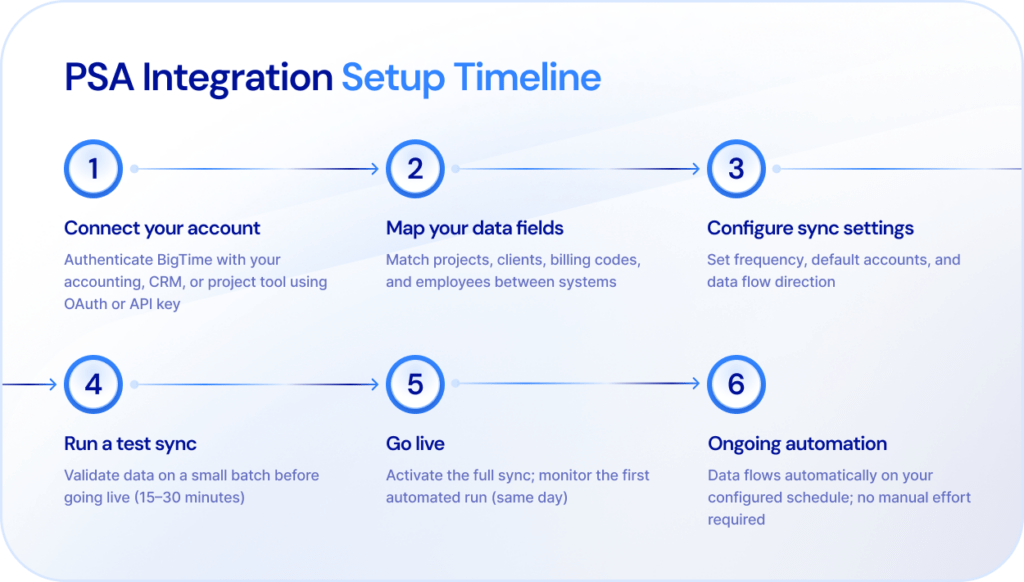
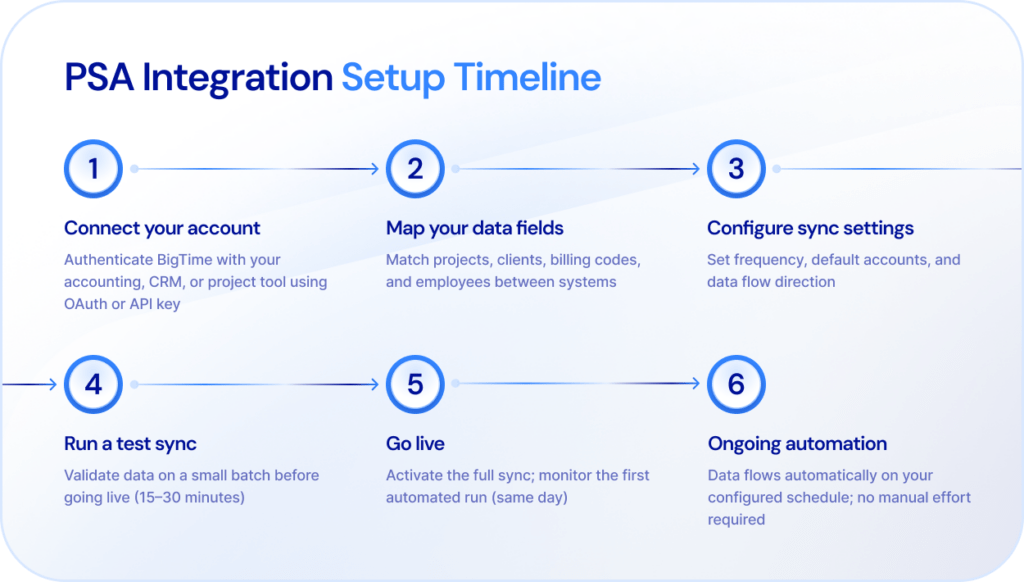
  • Step 1 — Connect QuickBooks: From BigTime’s Integrations settings, authorize the connection to QuickBooks Online or QuickBooks Desktop. This takes under 10 minutes.
  • Step 2 — Map your data: BigTime walks you through matching your chart of accounts, customers, and items. Plan for 15 to 30 minutes.
  • Step 3 — Run the first sync: Pull your existing QuickBooks data into BigTime and confirm customers and open invoices landed correctly.
  • Step 4 — Enable BigTime Payments: Activate credit card and ACH processing and attach a payment link to your invoice template.
  • Step 5 — Send and collect: Generate an invoice from tracked time, send it, and watch the payment post to QuickBooks automatically once the client pays. Turn on automatic reminders and autopay, and the collection cycle largely runs itself.

Frequently Asked Questions

Does QuickBooks Have Built-In Payment Features?

Yes. QuickBooks Payments, Intuit’s native processing service, lets small businesses accept payments by credit card (Visa, Mastercard, and others), ACH, and even in person via card reader. It covers straightforward transactions well but lacks project-based billing, autopay for retainers, and the automated matching that professional services firms need, which is why most growing firms add a dedicated payment integration on top.

Why Should I Integrate Payment Software With QuickBooks Instead of Using Them Separately?

Running them separately means every payment gets recorded twice, once where you collect it and once in QuickBooks. That’s slow, error-prone, and hard on data security since payment data passes through more hands. An integration posts each transaction to QuickBooks automatically, matched to the right invoice, keeping your books current without any manual work.

What Should I Look For in Payment Software That Integrates With QuickBooks?

Five things: two-way sync, support for your QuickBooks version (Online, Desktop, or Enterprise), native credit card and ACH processing rather than a bolted-on gateway like PayPal, automatic invoice matching, and clear numbers on transaction costs and funding speed. PCI DSS compliance is non-negotiable; it protects your clients and builds trust in every transaction.

Which Payment Tools Integrate Best With QuickBooks?

BigTime offers the deepest QuickBooks payment integration for professional services firms. It’s the only platform in this comparison with two-way sync across both QuickBooks Online and QuickBooks Desktop, plus built-in processing, next-day ACH funding, and autopay, and 91% of invoices sent through BigTime are paid on time.

Is There a Difference Between a “Basic” and “Advanced” QuickBooks Integration?

A big one. A basic integration pushes invoice totals to QuickBooks one way and stops there. An advanced integration syncs payments, invoices, customers, and items in both directions, matches every payment to its invoice automatically, and updates in real time. Basic integrations save a little typing; advanced ones remove reconciliation from your team’s week entirely.

How Do I Set Up a Payment Integration With QuickBooks?

With BigTime, it’s a same-day job: authorize the QuickBooks connection from the Integrations settings, map your accounts and customers, run an initial sync, and enable BigTime Payments so clients can pay directly from invoices. No developer required, and most firms are collecting online payments within an afternoon.

PSA Time Tracking: The Software Stack That Turns Hours Into Revenue

Professional services firms lose 10-20% of billable work to untimely time entries and scope creep that never makes it onto an invoice. For a 50-person consulting firm, that’s hundreds of thousands of dollars in revenue leakage every year, not from bad projects, but from hours that simply never got logged or billed correctly.

PSA time tracking closes that gap. Instead of treating time entries as a standalone admin task, professional services automation connects every logged hour directly to billing, project margins, and resource utilization, so nothing falls through the cracks between the field and the GL. If your team is still toggling between a time tracking tool and a separate invoicing system, you’re likely already feeling where that disconnect costs you the most: in billable hours that never reach a client invoice.

Below, we’ll break down what PSA time tracking actually means, the core capabilities worth demanding from any platform, and how the top players in the category stack up, starting with why a financial-first approach changes the math entirely.

What is PSA Time Tracking?

PSA time tracking is the time entry and timesheet functionality built into professional services automation software, capturing billable and non-billable hours and feeding that data directly into billing, project profitability, and resource planning, all from one system.

To understand PSA time tracking, it helps to separate the two terms first.

Time tracking, on its own, is simply the practice of logging hours against tasks or projects. Plenty of standalone time tracking software does this well: clock in, clock out, log time against a project code, done. It’s useful, but it stops there.

Professional services automation is the broader category of software that connects the full project lifecycle, from sales quoting and resource planning through delivery, billing, and revenue recognition, in a single system built around your firm’s financial logic.

PSA time tracking is where those two ideas meet. Instead of a timesheet living in isolation, time entries become the financial input that powers everything downstream: an hour logged today is the same hour that shows up on a client invoice, rolls into a project’s profitability report, and informs how a project manager allocates resources for next month. The time data isn’t just a record of what happened. It’s the foundation that the rest of the PSA system runs on.

Which Teams Benefit Most from PSA Time Tracking?

Not every team feels this pain the same way, but a few groups consistently see the clearest return from connecting time tracking to a full PSA system.

Consulting firms juggling multiple client projects at once need to know exactly how much time each consultant is spending where, both to bill accurately and to assess resource allocation before a project goes over budget. IT services teams, where technicians spend their days split across support tickets, implementation work, and ongoing retainers, rely on time entries to separate billable vs. non-billable hours correctly so nothing gets written off by mistake.

Engineering and architecture firms managing project-based work with long project timelines need time data that ties cleanly to milestone billing and revenue recognition schedules. Professional services organizations operating inside larger software companies often have the opposite problem: time tracking and monitoring project progress exists, but it’s disconnected from the billing system entirely, creating the same revenue leakage risk as a firm with no PSA at all. And mid-sized PSA companies scaling past 30-50 employees tend to be the group that feels this most acutely, since manual reconciliation between a time tracking tool and QuickBooks stops being a minor annoyance and starts becoming a real drag on operational efficiency, team management functions and month-end close.

Across all of these teams, the common thread is the same: time entries are only useful if they connect to something bigger than a timesheet.

PSA vs. Standalone Time Tracking Software: Which Do You Need?

This is usually the first fork in the road for a growing firm, and the answer depends less on company size and more on how complex your billing and project structure already are.

A standalone time tracking tool can genuinely be enough if your firm runs a single type of engagement, has simple hourly billing, and doesn’t need that time data to flow anywhere beyond a basic invoice. In short, it can replace a comprehensive manager approval system for those who truly don’t need it. Small teams just getting off the ground, or firms with one consistent billing model and no resource planning needs, often do fine logging hours in a lightweight app and exporting a report once a month.

A full PSA becomes the right call once any of the following starts happening:

  • You’re managing multiple projects with different billing rules (fixed fee here, T&M there)
  • You need time data to inform resource allocation and capacity planning
  • Your finance team is manually re-entering hours from a time tracker into QuickBooks or Sage every billing cycle.

At that point, the standalone tool isn’t saving time anymore, it’s just moving the reconciliation work somewhere else.

Standalone Time TrackingPSA Time Tracking
Best forSingle project type, simple hourly billingMultiple projects, flexible billing models
Billing connectionManual export/importBuilt-in, automatic
Resource allocationNot supportedTime data informs planning
Revenue recognitionNot supportedConnected to financial system
ReportingHours logged onlyProject profitability, utilization, margins
Scales with growthBreaks down past basic use casesGrows with added modules

Common Time Tracking Challenges PSA Software Solves

Most firms don’t start looking for a PSA because they want better time tracking in the abstract. They go looking because a specific pain point has started costing real money.

  • Hours logged too late to bill accurately. Weekly time entry versus daily entry leads to 25-50% more write-offs, simply because nobody remembers exactly how much time they spent on a task days later.
  • Time data lives in a different system than billing. Manual transfers between a time tracker and a billing system create the most common form of revenue leakage: missed, miscoded, or mis-rated hours.
  • Billable vs. non-billable hours blur together. Without clear separation at the point of entry, non-billable hours quietly erode billable utilization until a quarterly report reveals the damage.
  • Project managers lack real-time visibility. When time entries take days to surface, budget overruns get caught after the fact instead of while there’s still time to act.
  • Multiple projects mean multiple billing rules. Fixed fee, T&M, and retainer work all need different treatment, and without automation, finance ends up maintaining shadow spreadsheets to keep rates straight.
  • Resource allocation runs on guesswork. Without historical time data tied to specific projects, project managers staff based on who’s available rather than who fits the work or whether capacity will hold up.

The 5 Core Time Tracking Capabilities in a PSA

A PSA timekeeper is only as useful as the capabilities built around it. Here’s what separates a PSA system that actually solves the problem from project management software that just digitizes a paper timesheet.

Flexible time entry across web, mobile app, and integrations

Consultants log hours however fits their workday. The point isn’t just convenience. It’s removing every excuse for time to go unlogged. The closer time entry sits to the actual work, the more accurate the data, and accurate data is what everything downstream depends on. Firms that give consultants flexible ways to log time consistently see fewer end-of-week reconstruction errors and far less of the “Friday afternoon effect” that drives unnecessary write-offs. They can also track project progress without any missing pieces, leading to improved project and financial management.

Automatic billing rule application

This is where PSA software time tracking billing integration earns its name. As time entries come in, the system should apply the correct rate card, contract type, and billing rule instantly, whether a project is fixed fee, time and materials, or a blended retainer arrangement. There’s no separate step where someone on finance has to manually match an hour to the right invoice line or double-check which rate applies to which client. For firms juggling multiple billing models across multiple projects, this single capability is often what determines whether month-end close takes hours or days.

Real-time project progress and budget visibility

Project managers need to monitor project progress against budget the moment time is entered, not wait for a report that surfaces problems after they’ve already happened – project success depends on it. Real-time visibility means scope creep gets caught while there’s still room to course-correct, rather than showing up as a write-off three weeks into a project. This same data also feeds project profitability calculations, giving leadership an accurate read on margins as a project unfolds instead of an autopsy after it closes.

Resource utilization and capacity reporting

Logged time data doesn’t just inform billing, it’s the foundation for planning and resource forecasting. With clean time data flowing in continuously, leadership gets a real-time picture of team utilization: who’s overbooked, who has room for another client project, and where capacity gaps might appear over the next 60 to 90 days. This turns resource allocation from a reactive scramble into a planning exercise grounded in actual time spent, not assumptions about who happens to be available.

Manager approval workflows

A comprehensive manager approval system reviews time entries before they ever reach an invoice, catching coding errors, missing entries, or policy violations without adding days to the billing cycle. This approval layer is what keeps accurate billing accurate for various client projects, even as a firm scales past a handful of consultants and projects. Without it, errors that would have been caught in a five-person firm get buried in volume once a team grows past 30 or 40 people.

PSA Time Tracking Software Comparison: Side-By-Side Feature Matrix

Here’s how the leading PSA platforms stack up on time tracking, billing integration, and the features that matter most for accurate, connected billing.

PlatformTime Tracking FeaturesBilling IntegrationBest ForPrice RangeG2 / Capterra Rating
BigTimeDaily time entry, mobile app, manager approval workflows, automatic rate card applicationBi-directional QuickBooks & Sage sync, real-time GL connectionMid-market firms (30-100+ employees) needing financial-first PSAMid-range, modular pricing4.6 / 5 (G2, 1,500+ reviews)
KantataTime entry tied to resource scheduling, AI-driven utilization insightsBilling exists but is secondary to delivery workflowsLarge agencies and enterprise creative/consulting teamsHigh, enterprise-tier4.1 / 5 (G2)
AcceloBasic time tracking with timer functionalityConnects to accounting but requires manual reconciliation in complex billing scenariosSmall agencies with simpler billing needsMid-range4.3 / 5 (G2)
ScoroTime tracking bundled into broader work management suiteInvoicing present, but GL depth is limited for complex rate structuresSmall to mid-sized teams prioritizing all-in-one UI over financial depthMid-range4.5 / 5 (G2)
RocketlaneTime tracking secondary to client onboarding and delivery featuresBilling integration is minimal, built more for engagement tracking than invoicingCustomer onboarding and implementation teamsMid-range4.7 / 5 (G2)
CertiniaTime entry built on Salesforce, heavily dependent on Salesforce ecosystemRequires Salesforce infrastructure and significant configuration for GL syncEnterprise firms already deep in SalesforceHigh, enterprise-tier4.2 / 5 (G2)

BigTime: PSA Time Tracking Built Around Your GL

G2: 4.6/5 (1,500+ reviews) | Capterra: 4.5/5 (800+ reviews)

Best for

BigTime is best for IT services, engineering, and consulting firms with 30-100+ employees that run on QuickBooks or Sage and need time tracking that connects directly to billing, project profitability, and resource planning, without the complexity or cost of an enterprise PSA.

Key features

  • Daily time entry with an Excel-like interface that consultants actually adopt, since it mirrors the spreadsheets many teams already used before switching to a PSA
  • Mobile app time tracking so consultants can log hours from a mobile device on-site, between client meetings, or while traveling
  • Comprehensive manager approval system that reviews time entries before they hit an invoice, catching errors without slowing down the billing cycle
  • Automatic rate card and billing rule application, applying the correct contract logic (fixed fee, T&M, retainer) the moment time is logged
  • Real-time utilization and project progress reporting, giving project managers visibility into budget burn and resource allocation without waiting for month-end

Time tracking details

What sets BigTime’s time tracking apart isn’t the entry experience alone, it’s what happens to that data immediately after. Every logged hour flows directly into BigTime’s billing engine, which is built around a bi-directional, audit-ready integration with both QuickBooks Desktop and QuickBooks Online. That means time data doesn’t sit in a separate system waiting for someone in finance to manually reconcile it against the GL. Rates, contract types, and billing rules are already attached to the time entry the moment a consultant logs it, so accurate billing isn’t a downstream cleanup task, it’s built into the system from the first hour tracked.

This is also where PSA time tracking professional services automation shows its real value: time entries inform resource allocation and capacity forecasting in the same system, so project managers aren’t toggling between a timesheet tool and a separate resourcing spreadsheet to figure out who’s available for the next client project.

Pricing

BigTime offers modular, tiered pricing based on the modules a firm needs, starting with Delivery (time, billing, invoicing, profitability) and expanding into Resource Management, Quotes, and Payments as complexity grows. Firms pay only for what they use, with no enterprise bundle tax and no forced modules. Free demo available.

PSA Time Tracking

Kantata

G2: 4.1/5 | Capterra: 4.0/5

Best for

Kantata is best for large agencies and enterprise consulting teams that need deep resource scheduling tied to analyzing time data.

Key features

  • AI-driven utilization insights through its Expertise Engine, built on a proprietary services ontology
  • Time entry tightly coupled with resource scheduling and staffing recommendations
  • Project-level Gantt charts and milestone tracking for delivery-heavy engagements
  • Built-in collaboration tools designed for distributed delivery teams
  • Custom reporting dashboards that require setup time before they’re useful
  • Capacity planning tools layered on top of logged time data

Time tracking details

Kantata treats time entry as an input to resource scheduling first and billing second, which shows in how the platform is built. It’s a delivery-first PSA wearing a financial layer rather than the other way around. Time data feeds staffing and utilization models well, but the GL connection is secondary, and firms whose priority is billing accuracy and clean rate management often find themselves doing more configuration work than they expected to get invoices matching project reality. For a firm where margin and cash flow are the deciding factor, not just delivery visibility, that gap matters.

Pricing

Kantata is priced for enterprise budgets, typically requiring annual contracts well above what a mid-market firm would expect to pay, paired with implementation timelines running 6-12 months and a dedicated team to manage the rollout.

Accelo

G2: 4.3/5 | Capterra: 4.4/5

Best for

Accelo works reasonably well for small agencies and service businesses with simpler billing needs, mainly straightforward hourly engagements without much variation in contract type.

Key features

  • Built-in timer for quick time entry, useful for ticket-based or support-style work
  • Ticket-based time tracking tied to client requests
  • Basic project invoicing generated from logged hours
  • CRM and sales pipeline integration bundled into the same platform
  • Client portal access for status visibility
  • Email and calendar sync for activity logging

Time tracking details

Accelo’s time tracking connects to its own invoicing module well enough when a project fits a simple hourly structure, but that’s also its ceiling. Firms running multiple billing models, fixed fee on one project, T&M on another, often discover that accurate billing requires manual workarounds once contract complexity increases past what the platform was designed for. As a delivery-first tool with billing added on, Accelo’s center of gravity is task and client management, not the financial logic professional services firms eventually need as they scale past a handful of straightforward projects.

Pricing

Accelo’s pricing sits in the mid-range to start but climbs quickly as firms add users and modules, which can catch growing teams off guard if they signed on expecting a lighter footprint.

Scoro

G2: 4.5/5 | Capterra: 4.5/5

Best for

Scoro suits small to mid-sized teams that want time tracking bundled into a broader all-in-one work management suite and are willing to trade financial depth for a more unified, all-in-one interface.

Key features

  • Time tracking embedded across project, task, and calendar views
  • Built-in invoicing and quoting within the same platform
  • Natural language AI assistant (Scoro ELI) for surfacing data
  • Expense tracking dashboards at the project level
  • Calendar and scheduling integration for capacity visibility
  • Customizable reporting templates

Time tracking details

Time logging in Scoro is clean and well-integrated into the broader interface, and basic invoicing is genuinely built in rather than bolted on. The trade-off shows up at the GL level: financial depth is limited once a firm needs more than straightforward rate structures, and reconciling complex billing rules against QuickBooks or Sage often requires more manual oversight than firms expect going in. For teams that need an all-in-one UI more than deep financial rigor, that’s an acceptable trade. For firms where billing accuracy and audit-ready GL sync are the priority, it’s a real limitation.

Pricing

Scoro’s pricing is mid-range and bundles most functionality into tiered plans, which keeps costs predictable but can mean paying for delivery-side features a finance-focused firm won’t use heavily

Rocketlane

G2: 4.7/5 | Capterra: 4.6/5

Best for

Rocketlane is best for customer onboarding and implementation teams that need time tracking secondary to client-facing project timelines, not firms whose core need is running the financial side of the business.

Key features

  • Time tracking tied directly to onboarding milestones and tasks
  • Client collaboration tools and shared project timelines
  • Templated project playbooks for repeatable onboarding motions
  • Automated status reporting for stakeholders
  • Integration with CRM tools for handoff visibility
  • Health scoring to flag at-risk engagements

Time tracking details

Rocketlane’s time entry exists mainly to support visibility into onboarding progress, and that’s reflected in how shallow the billing integration is by design. Time logged in the platform feeds status updates and client-facing timelines well, but firms looking for PSA software time tracking billing integration that ties directly into rate cards and revenue recognition will find this a meaningful gap. It’s a strong tool for what it’s built for: managing the onboarding and implementation phase. It’s not built to run a firm’s billing or financial reporting.

Pricing

Mid-range pricing, typically scoped around onboarding and implementation use cases rather than full-firm financial management or complex billing needs.

Certinia

G2: 4.2/5 | Capterra: 4.0/5

Best for

Certinia is best for enterprise firms already deep in the Salesforce ecosystem that need PSA functionality native to that platform and have the budget for ongoing Salesforce administration.

Key features

  • Time entry built natively inside Salesforce
  • AI staffing agent (Salesforce Agentforce) for resource recommendations
  • Revenue recognition automation tied to Salesforce data
  • Project and resource management modules
  • Custom Salesforce reporting and dashboards
  • Approval workflows configured through Salesforce automation

Time tracking details

Time tracking works smoothly if a firm’s operational center of gravity is already Salesforce, since the platform is built natively into that environment rather than connected through an integration. But that’s also the catch: it requires significant Salesforce infrastructure, licensing, and configuration to sync cleanly with the GL. For firms running finance on QuickBooks or Sage rather than Salesforce, which describes most mid-market professional services firms, this adds a layer of complexity and cost rather than removing one, and the implementation timeline reflects that.

Pricing

High, enterprise-tier pricing that typically requires existing Salesforce licensing on top of the Certinia contract itself, plus a dedicated implementation budget.

What’s The Best PSA Time Tracking Software?

If you’re still toggling between a time tracking tool and a separate billing system, every hour that gets miscoded, logged late, or lost in a manual handoff is revenue you’re not getting back.

The firms that solve this best aren’t the ones with the flashiest time entry interface. They’re the ones where time tracking, billing, and the GL all run on the same financial logic from the first hour logged. That’s the structural difference between a PSA built around delivery with billing added on, and one built around your General Ledger from day one.

BigTime is built the second way. Time entries flow directly into billing rules, rate cards, and a bi-directional QuickBooks and Sage sync, so accurate billing isn’t a downstream cleanup task, it’s built into the system itself. As one customer put it, a finance team of three was able to manage a 320-person organization, in large part because time tracking adoption was never a fight.

PSA Timesheet

Best PSA time tracking by use case

Best time tracking PSA software for professional services firms

BigTime, for firms that need time entries connected directly to billing rules, rate cards, and GL sync without enterprise complexity.

Best for consulting firms

BigTime, since consultants working across multiple client projects need rate cards and billing rules applied automatically as they log time, not reconciled manually later.

Best for IT companies

BigTime, where technicians splitting time across support tickets, retainers, and implementation work need clear separation between billable and non-billable hours from the moment time is entered.

Best for engineering firms

BigTime, for project-based work with long timelines where time data needs to tie cleanly to milestone billing and revenue recognition schedules.

Best for small and medium businesses

BigTime, since firms up to 200 employees get modular pricing, pay only for the modules they use, and avoid the enterprise bundle tax of platforms like Kantata or Certinia.

Best AI PSA time tracking

BigTime, through AVA (its conversational AI assistant) and the Resourcing Agent, which surfaces missing timesheets and staffing recommendations based on real time data, not generic AI bolted onto a delivery tool.

FAQ: PSA Time Tracking

How does PSA time tracking improve billable utilization?

By capturing time data the moment work happens and tying it directly to billing codes, PSA time tracking gives project managers real-time visibility into non-billable hours eating into capacity. Daily entry also reduces the “Friday afternoon effect,” where reconstructing a week from memory leads to under-logged hours and avoidable write-offs.

What’s the difference between PSA vs. time tracking software?

Standalone time tracking logs hours and stops there. PSA time tracking connects those same hours to billing rules, rate cards, resource planning, and revenue recognition in one system. The gap shows up fast once a firm manages multiple projects with different billing models.

How do I choose a PSA with strong time tracking?

Look for flexible entry across web and mobile app, automatic billing rule application, real-time project progress visibility, and a manager approval system that catches errors before invoicing. Just as important: check whether time data syncs with your GL automatically or needs manual reconciliation.

What’s the best time tracking for PSA?

BigTime. Time entries inherit the correct rate card and billing rule the moment they’re logged, backed by a bi-directional, audit-ready sync with QuickBooks Desktop and Online. Most platforms connect time tracking to billing through an integration; BigTime builds it in from the start.

What’s the best PSA time tracking for small and medium companies (up to 200 people)?

BigTime. Modular pricing lets growing firms start with time tracking, billing, and invoicing, then add modules only when needed, without the enterprise bloat of platforms like Kantata or Certinia. An Excel-like interface and 30-90 day implementation make it a natural fit for firms past spreadsheets but not ready for enterprise transformation.

PSA Billing: The Key To Flawless Invoice Generation In Professional Services Companies

Professional services firms lose an estimated 10 to 20% of all billable work to revenue leakage before an invoice is ever sent. That figure compounds across missed time entries, incorrect rate cards, and billing cycles that run days behind where they should. For a 50-person firm, that gap can represent $500,000 or more in unbilled revenue per year.

PSA billing software closes that gap. By connecting project delivery, time tracking, and invoice generation inside one system, professional services automation gives Finance Directors and Controllers the accuracy and visibility they need to bill on time, bill correctly, and get paid faster.

If your team is still reconciling timesheets against invoices at month-end, this guide covers what PSA billing actually does, which tools do it best, and how to choose the right fit for your firm.

What Is PSA Billing?

PSA billing is the invoicing and revenue management capability built into a professional services automation platform. Rather than treating invoicing as a standalone task, it connects every upstream input — time entries, approved expenses, contract terms, and project status — directly to invoice generation. Billing becomes a byproduct of project delivery, not a separate process your finance team reconstructs at month-end.

In short, PSA billing automates client invoice creation and reconciliation by pulling live data from time tracking, project delivery, and contract management into a single, auditable workflow.

Which Teams Benefit Most from PSA Billing?

The direct beneficiaries are Finance Directors, Controllers, and billing teams, but the impact reaches across the organization – regardless of their type.

  • Consulting firms deal with complex rate structures and milestone billing across multiple active engagements. PSA billing handles variable billing models without requiring finance to maintain shadow spreadsheets for each client.
  • IT services and managed service providers often bill against recurring contracts, time and materials, or a combination of both. A PSA that supports recurring billing alongside project-based invoicing keeps both revenue streams accurate without separate systems.
  • Engineering firms typically manage long-running projects with detailed budget tracking and strict WIP visibility requirements. PSA billing gives project managers and finance teams a shared view of budget vs. actuals, so billing decisions are grounded in current project performance.
  • Professional services organizations inside software companies face the added complexity of aligning delivery team capacity with finance reporting cycles. PSA billing creates a direct link between project delivery and financial management, so revenue recognition reflects what was actually delivered.
  • Mid-sized professional services firms — typically 30 to 150 employees — gain the most from replacing disconnected tools with a unified billing flow. At that size, manual processes are already costing measurable time and accuracy, but enterprise-scale implementations are overkill. A modular PSA platform lets these firms get billing right first, then expand into resource management and quoting as complexity grows.

PSA vs. Standalone Billing Software: Which Do You Need?

The honest answer depends on where your firm’s billing problems actually start. For some teams, invoicing is the only friction point. For others, invoicing is just where the damage from upstream problems finally shows up.

A dedicated billing tool handles invoice generation, payment tracking, and basic client management well. If your firm has a simple rate structure, a small project portfolio, and a finance team that isn’t spending significant time on manual reconciliation, a standalone tool may be enough.

But most professional services firms hit a point where the billing problem is really a real-time data problem. Invoices go out late because timesheets aren’t approved. Invoices go out wrong because rate cards live in a spreadsheet nobody updated. Revenue recognition lags because the GL and the project system have never actually talked to each other. Time capture has more flaws than logged hours. No standalone billing tool fixes any of that, because the root cause sits upstream.

Standalone Billing SoftwarePSA Billing
Best forSmall firms, simple rate structures, single use caseGrowing PS firms with multiple projects, billing models, and teams
Time trackingManual import or separate tool requiredBuilt in, connected to billing automatically
Rate card managementManual, spreadsheet-dependentConfigured in the platform, applied at invoice generation
GL integrationBasic sync or exportBi-directional, audit-ready
Revenue recognitionNot supportedNative, tied to project delivery milestones
Resource managementNot includedAvailable as a connected module
Billing models supportedFixed fee or simple T&MFixed fee, T&M, milestone, retainer, recurring billing
Real-time visibilityLimitedFull visibility across projects, WIP, and AR aging

The connection between project delivery and billing is where most mid-market professional services firms lose margin. A PSA that handles both doesn’t just save your finance team time on manual work. It protects the revenue your delivery teams already earned.

Common PSA Billing Challenges PSA Software Solves

Most billing problems in professional services don’t announce themselves. They accumulate quietly across dozens of projects until Finance is spending a week at month-end untangling what should have been straightforward invoicing.

  • Missed billable work. When time entries live separately from project delivery, hours slip through. A consultant logs time against the wrong code. A phase closes before expenses are approved. SPI Research puts average leakage at 10 to 20% of all work performed — for a 50-person firm, that’s not a rounding error.
  • Billing lag that stretches cash flow. Manual billing processes create a predictable gap between work delivered and invoice sent. The difference usually comes down to how tightly billing connects to delivery.
  • Rate card errors at scale. As client relationships grow more complex, the risk of invoicing the wrong rate increases. When rate cards live in spreadsheets rather than the system generating the invoice, discrepancies are inevitable.
  • Manual reconciliation between systems. When your PSA and accounting system don’t share a common financial logic, your finance team becomes the integration layer. Manual data entry between disconnected tools means your GL is always one export behind reality.
  • No real-time visibility into WIP. Without a live view of work in progress, billing decisions are based on stale data. Projects go over budget before Finance knows they’re at risk.

PSA billing addresses each of these at the source, before the invoice goes out wrong.

The 5 Core Billing Capabilities in a PSA

Not all PSA billing software is built the same way. These are the capabilities that separate platforms that genuinely protect billing accuracy from those that just move the manual work around.

1. Flexible Billing Models

Professional services firms rarely bill the same way across every client. A mature PSA supports fixed fee, time and materials, milestone-based, retainer, and recurring billing within a single platform — with rules configured once and applied automatically at invoice generation. Switching billing models per project shouldn’t require a workaround – and it should ensure faster payments, improved project accountig and, as a result, better financial management across the board.

2. Automated Time Capture and Approval Workflows

Accurate financial tracking starts with complete, approved time data that then feeds into project management software. A PSA should capture time entries at the project level, route them through configurable approval workflows, and feed approved hours directly into the automated billing cycle — with no manual import step between time tracking and invoice generation. This makes project accounting just a formality instead of a burdensome process.

3. Bi-Directional GL Integration

This is where most PSA billing implementations either earn or lose Finance’s trust. A genuine GL integration isn’t a one-way data export. It means invoices, payments, adjustments, and AR status flow between the PSA and your accounting system in real time, so your general ledger reflects current project financials without manual reconciliation.

4. WIP & Revenue Recognition

Work in progress visibility tells Finance what has been delivered but not yet invoiced. Revenue recognition ties that delivery to the correct accounting period. Without both, billing accuracy and financial reporting stay permanently out of sync. Such connection improves billing accuracy and makes the most of financial data at every stage of the project.

5. Real-Time Project Financial Visibility

Finance Directors and Controllers need more than invoice status. A PSA should surface budget vs. actuals, margin, utilization, and AR aging across the entire project portfolio in real time — so billing decisions are based on current project performance, not last week’s export. In other words, you can keep an eye on your project timelines without losing sight of its financial performance.

PSA Billing Software Comparison

BigTimeKantataAcceloScoroRocketlaneCertinia
Best forMid-market PS firms needing financial-first PSA billingLarge professional services orgs on SalesforceSmall to mid-size service businessesAll-in-one project & billing for SMBsClient-facing delivery teamsEnterprise PS on Salesforce ecosystem
Billing modelsFixed fee, T&M, milestone, retainer, recurringFixed fee, T&M, milestoneFixed fee, T&M, retainerFixed fee, T&M, retainerMilestone, fixed feeFixed fee, T&M, milestone
GL integrationBi-directional, audit-ready (QuickBooks Desktop & Online, Sage)Salesforce-native; limited standalone GLBasic QuickBooks syncBasic accounting integrationsLimited; delivery-focusedSalesforce/NetSuite native
WIP & revenue recognitionNative, tied to project deliveryAvailableLimitedLimitedNot a core featureAvailable
Time trackingBuilt-in, connected directly to billingBuilt-inBuilt-inBuilt-inBasicBuilt-in
Recurring billingYesLimitedYesYesNoYes
Real-time financial visibilityFull portfolio visibility across margin, utilization, and ARProject-level reportingBasicDashboard-levelDelivery-focusedStrong on Salesforce data
Implementation time30 to 90 days6 to 12 months4 to 8 weeks4 to 8 weeks2 to 4 weeks6 to 12 months
Price rangeMid-market pricing, modularHigh; enterprise pricingMid-rangeMid-rangeMid-rangeHigh; enterprise pricing
G2 rating4.5/54.1/54.4/54.5/54.7/54.2/5
Capterra rating4.6/54.1/54.4/54.6/54.6/54.2/5

BigTime

G2: 4.5/5 (1,500+ reviews) | Capterra: 4.6/5 (630+ reviews)

PSA Billing

Best For

Mid-market professional services firms — IT, engineering, and consulting — that need financial-first PSA billing built around their existing GL. BigTime is purpose-built for firms with 30 to 150 employees that have outgrown simple time tracking and invoicing tools but have no appetite for a six-month enterprise implementation.

Key Features

  • GL-native billing architecture. BigTime is built around QuickBooks and Sage, not beside them. Invoices, payments, adjustments, and AR status flow bi-directionally in real time. For finance teams living with manual reconciliation, this is the structural difference that matters most.
  • Flexible billing models in one platform. Fixed fee, T&M, milestone, retainer, and recurring billing are all supported natively. Rate cards are configured once and applied automatically at invoice generation.
  • Real-time WIP & revenue recognition. Finance Directors get a live view of work in progress across every active project, tied directly to revenue recognition and grounded in what was actually delivered.
  • Automated time capture connected to billing. Time entries are captured at the project level, routed through approval workflows, and fed directly into the billing cycle with no manual import step.
  • Full portfolio financial visibility. Budget vs. actuals, margin, utilization rates, and AR aging are visible across your entire project portfolio in real time.

PSA Billing Details

BigTime’s billing capability sits at the center of its Financial Excellence Stack. Every module — Resource Management, Quotes, Payments — inherits the same financial logic as the core billing engine, so margin discipline carries through from quote to cash collection without manual handoffs. BigTime Payments extends this flow into collections.

Pricing

BigTime uses modular, mid-market pricing. Firms start with Delivery for core billing and time tracking, then add Resource Management, Quotes, and Payments as complexity grows. No forced enterprise bundle. Contact BigTime for current pricing details or book a demo right away.

PSA Billing

Kantata

G2: 4.1/5 | Capterra: 4.1/5

Best For

Large professional services organizations already deep in the Salesforce ecosystem, with the implementation budgets and internal resources to match a platform of this scale.

Key Features

  • Project and resource management built around Salesforce data
  • Billing and revenue recognition tied to CRM pipeline
  • Workforce planning and utilization reporting across large teams
  • AI-powered project insights and forecasting via the Expertise Engine
  • Multi-currency and multi-entity support for complex org structures

PSA Billing Details

Kantata’s billing is functional but Salesforce-dependent. Firms not already on Salesforce will find the GL integration shallow compared to platforms built natively around QuickBooks or Sage. Kantata also leans delivery-first in its architecture — financial visibility is present, but it sits on top of project execution rather than beneath it. For firms where Finance, not the Project Manager, drives PSA decisions, that distinction matters.

Pricing

Enterprise pricing with implementation timelines of 6 to 12 months and contract values well above mid-market range. Not a practical fit for firms under 150 employees or those without a dedicated implementation team.

Accelo

G2: 4.4/5 | Capterra: 4.4/5

Best For

Small to mid-size service businesses that want a combined CRM, project management, and billing tool without managing multiple platforms. Works best for firms with straightforward rate structures and limited financial reporting requirements.

Key Features

  • Retainer and recurring billing management across client accounts
  • Client work tracking from initial sale through project delivery
  • Automated invoice generation from logged time and expenses
  • Basic QuickBooks and Xero sync for accounting
  • Built-in CRM for managing client relationships alongside projects

PSA Billing Details

Accelo approaches billing from the delivery side, not the finance side. The GL integration is basic, and firms with complex billing models or strict revenue recognition requirements will quickly hit its limits. Manual reconciliation between Accelo and the general ledger remains a reality for most finance teams on the platform. Growing firms often find they’ve outgrown its financial management capability before they’ve outgrown its project tracking features.

Pricing

Mid-range, per-user pricing. Modular to a degree, but billing depth doesn’t scale well with firm complexity or client volume.

Scoro

G2: 4.5/5 | Capterra: 4.6/5

Best For

SMBs and small professional services firms that want an all-in-one project, billing, and reporting tool with a clean interface and fast setup.

Key Features

  • Quoted and actual budget tracking per project
  • Invoice generation from tracked time and fixed fees
  • Financial executive dashboards with utilization and margin reporting
  • MCP connectivity for external AI model integration
  • Built-in CRM and quoting alongside project management

PSA Billing Details

Scoro covers the basics well for smaller firms — clean interface, fast setup, reasonable project financial reporting. At mid-market scale, GL integrations are surface-level and WIP management is limited. Firms with complex rate structures or multi-entity billing needs will find it underpowered, and Scoro’s recent AI push doesn’t address the underlying financial depth gap.

Pricing

Mid-range, tiered pricing. Costs increase noticeably as team size and feature requirements grow, and upper tiers can push into enterprise price territory without delivering enterprise billing depth.

Rocketlane

G2: 4.7/5 | Capterra: 4.6/5

Best For

Client-facing delivery teams that prioritize project onboarding experience, milestone tracking, and client collaboration over financial management and billing accuracy.

Key Features

  • Milestone and fixed-fee billing tied to delivery stages
  • Client portal for shared project visibility and communication
  • Time tracking connected to project phases and deliverables
  • Agentic automation for delivery and onboarding workflows
  • Project status reporting for both internal teams and clients

PSA Billing Details

Rocketlane is a delivery-first platform and its billing reflects that. No meaningful GL integration, no recurring billing support, and minimal WIP visibility. For firms where billing accuracy and cash flow management are priorities, it’s the wrong starting point — and most finance teams will need a second system alongside it.

Pricing

Mid-range pricing that reflects a delivery coordination tool rather than a financial management platform.

Certinia

G2: 4.2/5 | Capterra: 4.2/5

Best For

Enterprise professional services organizations running their entire business on the Salesforce platform, with IT resources and transformation budgets to support a complex implementation.

Key Features

  • Revenue recognition and contract billing native to Salesforce
  • Multi-currency and multi-entity billing for complex org structures
  • Resource management tied directly to CRM pipeline data
  • AI staffing automation via Salesforce Agentforce
  • Deep integration across the full Salesforce product ecosystem

PSA Billing Details

Certinia’s billing is genuinely strong inside the Salesforce ecosystem — multi-entity support, advanced revenue recognition, and deep CRM integration are real advantages for large enterprises. Outside that ecosystem, it offers very little. Mid-market firms on QuickBooks or Sage will find it expensive, slow to deploy, and architecturally misaligned with how they actually run their finances.

Pricing

High across the board. Enterprise contracts, enterprise timelines, and ongoing resource requirements make this a poor fit for any firm below 200 employees.

Final Verdict: What Is the Best PSA Billing Software?

For professional services firms that need billing accuracy, real-time financial visibility, and a GL integration they can actually trust, BigTime is the strongest choice in the mid-market PSA category.

The core reason is architectural. Most PSA billing tools are built around project delivery and treat invoicing as a downstream output. BigTime is built around the general ledger from the ground up, which means every rate card, billing rule, and revenue recognition decision lives in the same financial logic as your QuickBooks or Sage instance. That’s not a feature difference — it’s a structural one that compounds across every billing cycle.

If your firm is between 30 and 150 employees, running on QuickBooks or Sage, and losing time and revenue to manual billing processes, BigTime is the natural next step.

Ready to see it in action? Book a demo now and see how BigTime can help your company.

PSA Billing System

Which PSA Billing Software Is Right for Your Firm?

Best PSA Billing Software for Professional Services Firms

BigTime. Professional services firms need billing software that reflects the full complexity of how they work — variable rate structures, multiple contract types, and a finance team that needs real-time visibility without running manual reconciliation at month-end. BigTime connects time tracking, project delivery, and invoice generation inside one platform built around the GL, giving Finance Directors accurate, auditable billing data without the manual overhead.

Best PSA Billing Software for Consulting Firms

BigTime. Consulting firms typically manage multiple active engagements simultaneously, each with different billing models, rate cards, and approval requirements. BigTime handles fixed fee, T&M, milestone, and retainer billing natively, with rate cards configured once and applied automatically. Finance teams spend less time chasing down billing data and more time acting on it.

Best PSA Billing Software for IT Companies

BigTime. IT services firms and managed service providers deal with a mix of recurring contracts, project-based billing, and time and materials work — often across the same client. BigTime supports all three billing models within a single platform, with bi-directional QuickBooks and Sage integration that keeps the GL current without manual exports.

Best PSA Billing Software for Engineering Firms

BigTime. Engineering firms run long, complex projects where project budget vs. actuals visibility is critical to protecting margin. BigTime gives project managers and finance teams a shared real-time view of WIP, burn rate, and project profitability — so billing decisions are grounded in current delivery data, not last month’s timesheet export.

Best PSA Billing Software for Small and Medium Businesses

BigTime. For firms between 30 and 150 employees, the right PSA billing platform needs to be powerful enough to handle real financial complexity without requiring a six-month implementation or an enterprise contract. BigTime’s modular structure lets smaller firms start with core billing and time tracking, then expand into resource management and payments as their needs grow. The 30 to 90 day go-live timeline means ROI shows up in the first billing cycle, not the first year.

Best AI PSA Billing Software

BigTime. Most PSA vendors are adding AI as a layer on top of their existing systems. BigTime’s AI is built inside the financial backbone — trained on 20 years of data from 3,000+ professional services deployments. In practice, that means AI that flags billing anomalies before invoices go out, detects missing billables in real time, and surfaces margin risk at the project level before it shows up in month-end reports.

PSA Billing: Frequently Asked Questions

How Does PSA Billing Improve Cash Flow?

By closing the gap between work delivered and invoice sent. When time entries, project delivery, and invoice generation are connected in one platform, billing cycles shorten and DSO drops. Industry benchmarks put average DSO for professional services firms at 45 to 55 days — best-in-class firms hit 30 to 35. Tightly connected PSA billing is usually the difference.

What’s the Difference Between PSA and Billing Software?

Standalone billing software handles invoices and payments but has no visibility into time entries, project delivery, or contract terms. PSA billing connects all of those inputs automatically, so every invoice reflects what was actually delivered at the correct rate, with GL sync already handled.

How to Choose a PSA with Strong Billing?

Start with GL integration — bi-directional sync with QuickBooks or Sage is non-negotiable for audit-ready financials. Then check billing model flexibility, WIP visibility, revenue recognition support, and how directly time tracking feeds into invoice generation. Implementation timeline matters too: a nine-month rollout is still several quarters of leakage you didn’t need.

What’s the Best Billing Software for PSA?

BigTime. Its billing is built around the general ledger from day one, not added on top of a project management tool. Every billing model professional services firms use is supported natively, rate cards apply automatically, and bi-directional QuickBooks and Sage integration gives Finance Directors an accurate, auditable view of project financials in real time.

What’s the Best PSA Billing Software for Small and Medium Companies?

BigTime. Its modular structure lets firms start with core billing and time tracking, then expand as complexity grows. The 30 to 90 day go-live means ROI shows up in the first billing cycle, not the first year. With a 4.6/5 rating on Capterra from over 630 reviews, it’s a platform mid-market finance teams consistently trust.

Read More:

  • Billing & Invoicing Software – Discover how billing and invoicing software can streamline client billing, reduce manual work, and improve payment processes.
    Learn which features help professional services firms create accurate invoices and maintain better financial control.
  • Quoting and Invoicing Software – Explore how quoting and invoicing software helps businesses create estimates, convert them into invoices, and manage client billing.
    See how integrated tools can improve accuracy, speed up workflows, and support a smoother quote-to-payment process.
  • Financial Management Software – Explore how financial management software helps professional services firms manage budgets, costs, cash flow, and profitability.
    Learn which features can improve financial visibility and support more informed business decisions.
  • Project Budgeting Software – Learn how project budgeting software can help teams plan costs, monitor spending, and maintain healthy project margins.
    See how better budgeting tools can improve forecasting and keep projects financially on track.

PSA Reporting: Best Software for Professional Services in 2026

Finance Directors at professional services firms lose an average of five to ten days per month reconciling project data across disconnected systems, according to industry benchmarks. That is not a reporting problem. It is a visibility problem, and it compounds every month you go without fixing it. The right PSA reporting setup changes that.

When your time data, billing rules, and project budgets all live in one financial system, the numbers you see at month-end actually reflect what happened during the month, not what your team managed to piece together from three exports and a shared spreadsheet.

This guide covers the best PSA reporting and analytics tools available in 2026. Whether you are evaluating your first PSA platform or replacing one that no longer keeps up with your firm’s growth, you will find a clear comparison here, grounded in real product capabilities and customer outcomes.

What Is PSA Reporting?

PSA reporting refers to the collection, organization, and visualization of operational and financial data within a Professional Services Automation platform. Where a standalone reporting tool pulls data from wherever you point it, PSA reporting works from a single source of truth: the same system your team uses to log time, manage projects, track budgets, and generate invoices.

The practical difference matters for compliance, too. When your billing data, expenses, and project financials all live in one place, the reporting process is cleaner, more auditable, and far less vulnerable to the kind of missing or inconsistent data that creates risk at assessment time.

The Connection Between PSA Dashboards and Reporting

PSA executive dashboards and PSA reports serve different purposes within the same system. A PSA dashboard gives your team a live view of what is happening right now. PSA reports go deeper, covering a defined period and answering specific financial questions, such as which projects hit margin targets last quarter or where billing lag is driving up cost.

Together, they form the core of PSA reporting and analytics: one layer for ongoing visibility, one for structured financial analysis. The value of both depends entirely on the quality of the underlying data. Firms running on disconnected tools tend to find that their reporting is only as good as the last manual export.

Which Teams Benefit Most from PSA Reporting?

PSA reporting touches every part of a professional services firm, but the value is not evenly distributed. The teams with the most to gain are the ones currently spending the most time producing numbers manually.

Finance Directors and Controllers are the primary beneficiaries. Real-time WIP visibility, AR aging, and project-level profitability reports replace the month-end reconciliation cycle with a continuous, accurate picture of firm performance.

Operations and Delivery Leaders, on the other hand, use PSA dashboards to monitor utilization rates across their team, catch scope creep before it becomes a write-off, and track budget vs. actuals on active engagements. When process visibility is this immediate, the decisions that follow tend to be faster and more grounded in reality.

COOs and Managing Partners rely on PSA reporting to make resourcing and growth decisions backed by financial data rather than estimates. Headcount planning, resource forecasting, and margin trends all become accessible without a dedicated analyst or a reporting sprint at the end of each month.

The firms that see the fastest return from PSA reporting and analytics tend to share one characteristic: they are past the point where a spreadsheet can do the job, but not yet resourced to build a data team. A well-configured PSA report replaces both, and reduces the manual process overhead that quietly eats into profitability over time.

PSA vs. Standalone Reporting Software: Which Do You Need?

This is one of the more common questions growing professional services firms face, and the answer depends less on the size of your team than on how interconnected your reporting needs actually are.

Standalone business intelligence tools are – in some cases – genuinely powerful. If your data is clean, centralized, and stable, they can produce sophisticated PSA reports and dashboards. The challenge is that most professional services firms are not starting from that position. Their data lives across a time tracker, an accounting system, a project management tool, and several spreadsheets. Getting those sources to produce reliable, consistent reporting requires significant setup, ongoing maintenance, and usually a dedicated analyst to keep it working.

Standalone Reporting ToolPSA with Built-In Reporting
Data sourcePulls from multiple disconnected systemsSingle source of truth across time, billing, and projects
Setup requirementHigh, requires data engineering or analystLow, data is captured as part of normal workflow
Real-time visibilityDepends on integration qualityBuilt in by design
Financial depthStrong visualization, limited billing contextFull project economics including WIP, AR, and margin
Best forSmall firms or as a BI complement to a PSAGrowing firms that need reliable, connected reporting
Maintenance overheadOngoing, especially as data sources changeManaged within the platform

A PSA platform with built-in reporting and analytics removes that dependency. The data does not need to be assembled before it can be reported on because it was never separated in the first place.

When a Standalone Reporting Tool Is Enough

A dedicated BI tool makes sense when your firm is small, your projects are relatively simple, and you have one person who owns the data infrastructure. If you are running a team of 10 to 15 people on a single contract type, a standalone tool connected to your accounting system may cover your reporting needs without the broader investment a PSA platform requires.

It also makes sense as a complement to a PSA, not a replacement. BigTime’s Data Hub, for example, gives customers direct access to raw financial and operational data for use in Power BI or Tableau, combining the depth of PSA reporting with the flexibility of a dedicated BI layer.

When a Full PSA Is the Right Call

Once your firm crosses the threshold where billing complexity, utilization tracking, and project profitability all need to be reported on simultaneously, a standalone tool starts to show its limits. The reporting is only as reliable as the process feeding it, and manual processes introduce errors that are hard to catch and harder to correct.

A PSA platform becomes the right call when:

  • Your team is managing multiple projects with different rate structures and contract types
  • Finance needs real-time visibility into WIP, AR aging, and budget burn, not a monthly snapshot
  • Reporting delays are affecting the decisions your leadership team can make
  • You are spending more time building reports than reading them

The firms that try to solve a PSA reporting problem with a standalone BI tool typically find that the tool works well until the data does not. At that point, the reporting is accurate enough to look credible but not accurate enough to act on, which is the most costly position a finance team can be in.

Common Reporting Challenges PSA Software Solves

Most professional services firms do not have a shortage of data. They have a shortage of data they can trust. The reporting challenges that push growing firms toward a PSA platform tend to follow a predictable pattern, and they get worse as the firm adds headcount and project complexity.

  • Month-end close takes too long. When time data, invoices, and GL entries live in separate systems, closing the books becomes a reconciliation project. Finance teams routinely spend five to ten days per month on manual processes that reliable PSA reporting would reduce to hours.
  • Project profitability is always a retrospective. By the time a traditional reporting cycle surfaces a margin problem, the project causing it is often already over budget. Real-time PSA dashboards show you a profitability risk on a Tuesday afternoon, not at month-end when it is too late to act.
  • Utilization drops before anyone notices. Firms running on spreadsheets typically find out their utilization fell after the revenue impact has already landed. A PSA report on capacity planning and billing gives operations leaders a forward-looking view, not just a record of what already happened.
  • Billing errors are caught after invoices go out. Incorrect rate cards and missing time entries are hard to catch when billing and project data live in separate systems. PSA reporting connects both, so anomalies surface before they reach the client.
  • Reports take days to build. If producing a standard profitability summary requires pulling from multiple sources and validating everything manually, your reporting process is consuming time that should be going toward billable work.

The 5 Core Reporting Capabilities in a PSA

Not all PSA reporting is built the same way. The platforms that deliver real financial value share a specific set of capabilities, and the gaps between them tend to show up exactly when you need the data most.

Real-Time Project Financial Reporting

The foundation of any PSA report is project-level financial data: project budget vs. actuals, margin, burn rate, and WIP balance, updated as time and expenses are logged rather than at the end of a reporting cycle. Without this, everything else is analysis of the past.

Utilization & Capacity Reporting

A PSA dashboard built around utilization management gives operations and finance leaders visibility into how billable hours are distributed across the team, where capacity gaps are forming, and how current staffing decisions will affect revenue over the next 30 to 90 days. The firms that manage utilization proactively consistently outperform those that measure it retrospectively.

Billing & Invoicing Analytics

PSA reporting and analytics should cover the full billing cycle: time logged, WIP-to-invoice conversion, invoice status, and AR aging. When billing data is connected to project data in one system, the reporting process surfaces discrepancies before they become errors on an invoice, rather than after.

Customizable PSA Dashboards

Different roles need different views of the same data. A Controller needs AR aging and revenue recognition. A Delivery Lead needs budget burn and scope status. A Managing Partner needs margin by client and utilization by practice. A well-designed PSA dashboard makes all of these accessible without a reporting sprint or a data analyst in between.

BI Integration & Raw Data Access

For firms that need reporting depth beyond what any PSA can provide natively, direct access to raw financial and operational data is essential. The ability to connect a PSA to Power BI, Tableau, or similar tools without losing data integrity gives growing firms the flexibility to build the specific reports their leadership needs, on top of a foundation they can trust.

PSA Reporting Software: Side-by-Side Comparison

The table below covers the most widely evaluated PSA platforms for reporting and analytics in 2026. Ratings are sourced from G2 and Capterra.

BigTimeKantataAcceloScoroRocketlaneCertinia
Best forMid-market PS firms needing financial-first reportingEnterprise PS firms on SalesforceSmall to mid-size service businessesAll-in-one ops for smaller teamsClient-facing delivery reportingEnterprise Salesforce-native PS
Real-time financial reportingYes, GL-nativeYes, delivery-firstLimitedYesLimitedYes
PSA dashboardHighly customizableCustomizableBasicGoodDelivery-focusedCustomizable
Utilization reportingYes, connected to billingYesYesYesLimitedYes
Billing & AR analyticsYes, full cyclePartialPartialPartialNoYes
BI integrationYes, Data Hub (Power BI, Tableau)LimitedNoNoNoYes, Salesforce-native
AI-powered insightsYes, AVA + Insights EngineYes, Expertise EngineNoYes, Scoro ELILimitedYes, Agentforce
Implementation time30 to 90 days6 to 12 months4 to 8 weeks4 to 8 weeks2 to 4 weeks6 to 12 months
G2 rating4.5/54.1/54.4/54.5/54.7/53.9/5
Capterra rating4.6/54.1/54.3/54.6/54.7/54.1/5
Price rangeFrom $20/user/monthFrom $59/user/monthFrom $24/user/monthFrom $26/user/monthFrom $19/user/monthCustom enterpri

BigTime: Best PSA Reporting Software for Mid-Market Professional Services

G2: 4.5/5 (1,500+ reviews) | Capterra: 4.6/5 (700+ reviews)

PSA reporting

Best For

Mid-market IT, engineering, and consulting firms that need financial reporting connected directly to their GL, not bolted on as an afterthought. BigTime is purpose-built for firms between 30 and 300 employees that have outgrown spreadsheets and disconnected tools but have no appetite for a six-month enterprise implementation.

Key Features

  • GL-native financial reporting built around QuickBooks and Sage, so PSA reports on margin, WIP, and profitability match your accounting system without a manual reconciliation step.
  • Configurable PSA dashboards by role, giving Finance Directors, Controllers, and COOs a live view of budget burn, utilization, AR aging, and project profitability.
  • Utilization & capacity reporting connected to financial outcomes, showing how staffing decisions translate into margin and revenue forecasting rather than hours logged in isolation.
  • Full billing cycle analytics covering time logged, WIP-to-invoice conversion, invoice status, and AR aging, all within a single financial system.
  • BigTime Data Hub for direct access to raw data in Power BI or Tableau, combining native PSA reporting with the flexibility of dedicated BI tools.
  • AVA, BigTime’s AI assistant, for natural language queries, billing anomaly detection, margin risk flagging, and auto-generated executive summaries.

PSA Reporting Details

BigTime’s reporting architecture starts where most PSA platforms stop: at the GL. While delivery-first competitors can add billing modules and QuickBooks connectors, they cannot retroactively rebuild their data model around financial continuity. BigTime’s reports on profitability, utilization rates, and cash flow are accurate because the underlying data was structured correctly from the first hour logged, not because a sync job ran last night.

Firms using BigTime report a three to five day reduction in month-end close time after go-live, driven by the elimination of manual reconciliation between their time tracker and accounting system.

Pricing

BigTime pricing starts at $20 per user per month. Modular structure means you pay for the solutions your firm actually uses. Contact BigTime for a tailored quote based on your team size and product combination.

PSA report

Kantata

G2: 4.1/5 | Capterra: 4.1/5

Best For

Large professional services organizations already operating within the Salesforce ecosystem that need enterprise-grade PSA reporting tied to CRM data. Kantata suits firms with dedicated implementation budgets and IT teams to manage the rollout.

Key Features

  • Salesforce-native reporting that connects CRM pipeline data to project delivery and financial outcomes.
  • Expertise Engine for AI-powered predictive analytics on resource risk, project outcomes, and revenue forecasting.
  • Utilization & capacity dashboards with scenario modeling across large, distributed teams.
  • Pre-built PSA report templates covering project margin, billing performance, and resource utilization.
  • Automated executive summaries generated from project and financial data across the portfolio.

PSA Reporting Details

Kantata’s reporting is delivery-first by design. Financial visibility is available but arrives through the project management layer rather than the GL, which means firms with complex billing structures may find themselves doing additional reconciliation work outside the platform. For organizations where Salesforce is already the operational center of gravity, that trade-off may be acceptable. For firms where the Finance Director or Controller drives the PSA decision, it is worth evaluating carefully.

Pricing

Kantata pricing starts at approximately $59 per user per month. Enterprise contracts are custom-quoted and typically include implementation and support packages.

Accelo

G2: 4.4/5 | Capterra: 4.3/5

Best For

Small to mid-size professional services firms looking for an all-in-one client work platform that covers CRM, project management, and basic financial reporting in a single interface.

Key Features

  • Client and project reporting covering time spent, budget status, and billing summaries across active engagements.
  • Revenue and profitability tracking at the project and client level.
  • Utilization reporting for team capacity and workload management.
  • Automated billing summaries connected to time tracking and project milestones.
  • Pre-built PSA dashboards for project health and team performance.

PSA Reporting Details

Accelo positions itself as a delivery-first platform, and its reporting reflects that orientation. Financial reporting capabilities are present but less developed than platforms built around GL integration. Firms with complex billing models, multiple contract types, or a finance team that needs audit-ready data will likely find the reporting depth insufficient as they grow. For smaller firms with straightforward billing needs, it covers the basics well.

Pricing

Accelo pricing starts at $24 per user per month, billed annually.

Scoro

G2: 4.5/5 | Capterra: 4.6/5

Best For

Smaller professional services teams that want a visually polished, all-in-one platform covering project management, time tracking, and business reporting.

Key Features

  • Scoro ELI, a natural language AI layer for querying project and financial data without building reports manually.
  • Pre-built and customizable PSA dashboards covering revenue, project margins, and team utilization.
  • Detailed time and billing reports connected to project budgets and client contracts.
  • KPI dashboards for tracking firm-wide performance against targets.
  • MCP connectivity for integrating external AI models with Scoro’s project data.

PSA Reporting Details

Scoro delivers strong visual reporting for smaller teams and is genuinely easy to get up and running quickly. The platform’s financial reporting is competent for straightforward use cases, but GL integration depth is limited compared to financial-first PSA platforms. Firms that prioritize QuickBooks or Sage connectivity as a non-negotiable part of their reporting infrastructure may find Scoro requires additional workarounds to maintain financial accuracy at scale.

Pricing

Scoro pricing starts at $26 per user per month, billed annually.

Rocketlane

G2: 4.7/5 | Capterra: 4.7/5

Best For

Professional services teams focused on client onboarding and delivery workflows where the primary reporting need is project status visibility for internal teams and external clients, rather than financial depth.

Key Features

  • Client-facing project portals with real-time status reporting shared directly with clients.
  • Delivery analytics covering milestone completion, project health, and team workload.
  • Time tracking reports connected to project phases and deliverables.
  • Agentic PSA features for automating delivery workflows and surfacing project risks.
  • Utilization dashboards for tracking team capacity across active projects.

PSA Reporting Details

Rocketlane is built around the client delivery experience, and its reporting reflects that focus. It does well on project status, milestone tracking, and client communication, but financial reporting is not its primary use case. Firms that need margin visibility, AR aging, WIP reporting, or GL-connected analytics will find Rocketlane’s financial reporting capabilities limited. It is a strong tool for delivery teams; it is not a financial reporting platform.

Pricing

Rocketlane pricing starts at $19 per user per month, billed annually.

Certinia

G2: 3.9/5 | Capterra: 4.1/5

Best For

Large enterprise professional services organizations already invested in the Salesforce platform that need PSA reporting and financial management running natively within that ecosystem.

Key Features

  • Salesforce-native PSA reporting with full CRM-to-revenue visibility across the project lifecycle.
  • AI-powered staffing and delivery agents built on Salesforce Agentforce for automated workflow reporting.
  • Revenue recognition reporting connected to project delivery milestones and billing schedules.
  • Executive PSA dashboards covering portfolio-level margin, utilization, and cash flow.
  • Compliance and audit reporting designed for enterprise governance requirements.

PSA Reporting Details

Certinia’s reporting is comprehensive within the Salesforce ecosystem, and for enterprises already running their business on that platform, the native integration removes a meaningful layer of complexity. Outside that context, the value proposition weakens considerably. Implementation timelines of six to twelve months, enterprise-level pricing, and a product built around Salesforce’s data model make Certinia a poor fit for mid-market firms that are not already Salesforce-native. G2 ratings also trail the category average, with customers frequently citing complexity and implementation difficulty as ongoing concerns.

Pricing

Certinia is custom-priced for enterprise contracts. Expect investment levels consistent with a full enterprise platform deployment.

What Is the Best PSA Reporting Software? Our Final Verdict

The right PSA reporting platform depends on one question: do you need reporting that looks good, or reporting you can actually run your business on?

Delivery-first platforms and standalone BI tools can produce impressive dashboards. What they struggle to deliver is financial accuracy without ongoing manual effort. When billing rules, rate cards, and project budgets share the same foundation as your reports, the numbers are reliable by design, not by reconciliation.

That is why BigTime leads this category for mid-market IT, engineering, and consulting firms. GL-native reporting, configurable PSA dashboards, AI-powered insights through AVA, and direct BI integration via Data Hub give growing firms the reporting infrastructure they need without enterprise complexity.

See how BigTime’s PSA reporting works for your firm. Book a demo now.

PSA analytics

PSA Reporting by Use Case

Best PSA Reporting Software for Professional Services Firms

Professional services firms need reporting that covers the full project lifecycle, from the margin on a quoted engagement to the cash collected after delivery. BigTime’s GL-native architecture means every PSA report your finance team runs reflects a single, consistent financial logic across billing, utilization, and project profitability. For firms managing multiple contract types, complex rate structures, and a growing project portfolio, that consistency is what makes reporting actionable rather than approximate.
Best PSA Reporting Software for Consulting Firms

Consulting firms live and die by utilization and margin. The reporting challenge is not a shortage of data but a shortage of data that arrives in time to change a decision. BigTime’s real-time PSA dashboards give consulting leaders visibility into budget burn and billable hours as they accumulate, not at the end of the month when the opportunity to course-correct has passed.

Best PSA Reporting Software for IT Companies

IT services firms typically run a mix of T&M, fixed-fee, and retainer contracts simultaneously, which creates significant complexity at the billing and reporting layer. BigTime handles that complexity natively, connecting rate structures and contract types to financial reporting without requiring manual workarounds or parallel spreadsheets to keep the numbers straight.

Best PSA Reporting Software for Engineering Firms

Engineering firms need project financial reporting that tracks budget vs. actuals at a granular level across long, multi-phase engagements. BigTime’s WIP visibility and real-time profitability reporting give engineering leaders the financial picture they need to manage scope, protect margin, and report accurately to clients and stakeholders throughout a project’s lifecycle.

Best PSA Reporting for Small and Medium Businesses

For professional services firms under 200 people, the reporting infrastructure needs to be powerful enough to support growth without requiring a dedicated analyst to operate it. BigTime’s modular structure means smaller firms can start with core delivery and financial reporting, then add utilization, resourcing, and BI integration as complexity grows. No re-platforming required.

Best AI PSA Reporting Software

BigTime’s AI layer is built into the financial backbone of the platform, not added on top of it. AVA surfaces insights through natural language queries, flags billing anomalies before invoices go out, and generates executive summaries from live project data. Because the AI operates on GL-native data rather than a separate reporting layer, the insights it produces are grounded in the same financial logic that runs the rest of the platform.

Frequently Asked Questions About PSA Reporting

How Does PSA Reporting Improve Profitability?

PSA reporting improves profitability by making margin visible in real time rather than retrospectively. When budget burn, utilization, and billing gaps are visible as they develop, there is still time to act. Firms that consistently hit margin targets are not the ones with the best analysts. They are the ones with reporting that surfaces risks while a project is still in motion.

What Is the Difference Between PSA and Standalone Reporting Software?

Standalone reporting tools display data well but depend entirely on the quality of the sources feeding them. PSA reporting is different because the data never leaves the platform. Time entries, billing rules, and project budgets all live in the same system, so reports reflect the actual state of the business without a manual assembly process in between.

How Do You Choose a PSA with Strong Reporting?

Start with the data model, not the dashboard. Look for a platform where financial reporting is native to the architecture, not an add-on. Evaluate GL integration depth, whether billing and project data share the same financial logic, and whether the platform gives you access to raw data for external BI tools if needed.

What Is the Best Reporting Tool for PSA?

BigTime. Its reporting is built around the GL from day one, so PSA reports on margin, WIP, utilization, and AR aging are accurate by design. Configurable dashboards, AI-powered insights through AVA, and Data Hub integration with Power BI and Tableau give finance and operations teams a full reporting stack without requiring a dedicated analyst to maintain it.

What Is the Best PSA Reporting Software for Small and Medium Companies?

BigTime. Its modular structure lets firms start with core financial reporting and add utilization, resourcing, and BI integration as needs grow. The Excel-like interface drives fast consultant adoption, which directly improves data quality. Full time adoption within 30 to 90 days means your reporting is accurate from the first billing cycle, not after a lengthy implementation.

QuickBooks PSA Integration: Setup Guide & Comparison

Professional services firms that connect their PSA software to QuickBooks save an average of 9 hours per week on manual data entry and reconciliation tasks – valuable time that goes back to billable work and client success. Yet most MSPs and service companies still run their PSA and accounting systems as separate silos, re-entering the same data in two places and chasing down billing errors at month-end.

This article covers everything you need to streamline your financial operations: which PSA platforms integrate with QuickBooks, how to choose between QuickBooks Online and Desktop, how to configure the sync, and how to avoid the mistakes that trip up most implementations.

What Is QuickBooks PSA Integration?

PSA stands for Professional Services Automation – a software that manages the operational side of a services business: project management, time tracking, ticketing, resource scheduling, and billing processes. QuickBooks handles the accounting side: the general ledger, accounts receivable, payroll, and financial management.

QuickBooks PSA integration means the two platforms exchange financial data automatically, without manual data entry or duplicate record-keeping. The direction is mostly one-way from the PSA outward: your PSA pushes approved time entries, expenses, and invoices into QuickBooks, which then handles posting them to the correct accounts and invoices. Some integrations also sync reference data back the other way: customer records, service items, and chart of accounts from QuickBooks into the PSA, so both systems stay consistent without duplication.

The practical result is that your team logs time and expenses once, in the PSA, and your accountant sees accurate, up-to-date financial records in QuickBooks without waiting for a manual export. That combination eliminates administrative burden, reduces errors, and gives leadership a comprehensive view of business health in real time.

QuickBooks Online vs Desktop — which works with your PSA?

The version of QuickBooks you use has a direct impact on which PSA integrations are available, how deeply they connect, and how much technical overhead your team takes on.

QuickBooks OnlineQuickBooks Desktop
DeploymentCloud-basedOn-premise (Windows)
APIModern REST APILegacy, limited API
PSA supportAll major PSA platformsVaries — BigTime and ConnectWise only at full depth
Sync typeReal-timeBatch / nightly (via local Sync Agent)
SetupNo local software neededSync Agent installation required
Best forMost MSPs and new implementationsCompliance environments, existing Desktop workflows, Enterprise features
Vendor directionPrimary investment targetDeclining — fewer new PSA integrations being built

In other words: go with QuickBooks Online unless you have a specific reason not to. If you are already on QuickBooks Desktop and adding a PSA, verify connector depth with the vendor before committing – not all Desktop integrations are equal in what they sync or how often.

Key Benefits of PSA Software + QuickBooks Integration

Integrating your PSA with QuickBooks does more than automate data entry. It changes how accurately and efficiently your business operates across billing, reporting, and financial management.

  • Billing accuracy. Errors from duplicate data entry disappear when approved time and expenses flow directly from the PSA platform into QuickBooks invoices. Discrepancies between what was delivered and what was billed are caught before invoices go out, not after.
  • Faster invoicing process. MSPs running monthly billing cycles typically spend 2–4 hours per cycle on manual exports re-entry. A seamless integration collapses that to a review-and-approve step.
  • Real-time insights into cash flow. AR aging in QuickBooks reflects outstanding invoices as soon as the PSA generates them, giving finance a current view of what is owed.
  • Full audit trail. Every invoice can be traced back to a specific ticket, time entry, or agreement in the PSA — important for client disputes, compliance reviews, and revenue recognition.
  • Reduced administrative burden. Hours freed from manual reconciliation can be redirected to client success and higher-value work, or avoided entirely as you scale up client counts and manage projects across more teams.
  • Scalability. As your firm grows, a well-configured PSA integration scales with it — syncing higher volumes of invoices, expenses, and customers without adding headcount to your billing processes.

Which PSA Platforms Integrate with QuickBooks?

Several PSA platforms offer QuickBooks integration, but the quality, depth, and real-time capability of those integrations varies significantly. Some platforms connect natively with a few clicks; others require third-party middleware or a custom sync agent. Below is a breakdown of the five most widely evaluated PSA tools and how each handles the QuickBooks connection.

PSA software that integrates with QuickBooks — comparison

PSA PlatformStarting PriceQB OnlineQB DesktopSync TypeG2 Rating
BigTime$20/user/monthNative, bidirectionalNative (Sync Agent)Real-time + manual4.5/5
ConnectWise PSAQuote-basedNativeNativeBatch / configurable3.9/5
AutotaskQuote-basedNativeLimitedReal-time (QBO only)4.3/5
HaloPSA$35–$115/agent/monthNativeLimitedReal-time (QBO only)4.8/5
SuperOps$79–$129/tech/monthNativeNot supportedReal-time4.5/5

BigTime — The Best PSA Software with QuickBooks Integration

BigTime is the PSA platform purpose-built around QuickBooks. While other PSA tools treat accounting integration as a feature, BigTime is architected from the ground up with QuickBooks as its financial backbone; it is an official Intuit-Integrated Application, a status that requires meeting Intuit’s own standards for data accuracy, sync reliability, and API compliance. For professional services firms where billing accuracy and financial control are non-negotiable, no PSA integrates with QuickBooks more deeply or more reliably.

Key features

  • Bidirectional QuickBooks sync — customers, jobs, employees, vendors, service items, invoices, time entries, and expenses all sync between BigTime’s billing software and QuickBooks automatically, in both directions, with no manual data entry required
  • Time and expense tracking — customizable time tracking tools with timesheets, mobile entry, approval workflows, and direct export to QuickBooks billing
  • Project management — task assignment, milestone tracking, Gantt views, budget monitoring, and resource utilization all in one platform to manage projects end to end
  • Invoicing and billing automation — generate invoices from approved time and expenses inside BigTime, then automate the seamless transfer to QuickBooks for posting and payment tracking
  • Real-time insights and AI analytics — live executive dashboards covering utilization, project profitability, margin, and KPIs to support fast, data-driven decisions
  • Resource management — staffing forecasts, capacity planning, and skill-based allocation across projects
  • Native integrations — QuickBooks Desktop, QuickBooks Online, Intuit Enterprise Suite, Sage Intacct, Salesforce, HubSpot, Google Workspace, Microsoft Outlook, and more

Who it’s best for

BigTime is the strongest fit for professional services organizations — consulting firms, IT service companies, engineering and architecture practices, and managed service providers — where billing accuracy, margin control, and project profitability are central to business operations. It scales well from small firms (5 users) up to mid-market organizations with hundreds of staff.

Teams that have outgrown spreadsheet-based processes or that are hitting the limits of a lightweight time tracker will find BigTime’s depth rewarding. It is particularly well-suited to firms that want a single source of truth connecting project delivery and financial management without investing in a full ERP system.

Quickbooks PSA integration

QuickBooks integration specifics

BigTime supports both QuickBooks Online and QuickBooks Desktop natively, with no third-party integration tool required. For QBO, the connection is OAuth-based and cloud-to-cloud — no local software installation needed, and sync happens in real time. For Desktop, BigTime’s Sync Agent installs locally and monitors for changes, pushing updates automatically on a nightly schedule with manual sync available on demand.

The integration syncs customers, jobs (projects), employees, vendors, and service items from QuickBooks into BigTime on initial setup, and keeps them current as either system changes. In the other direction, BigTime pushes approved time entries, expenses, and finalized invoices into QuickBooks — maintaining a complete audit trail from time log to posted transaction and supporting accurate financial reporting at every stage.

Class tracking, job costing, and multi-currency are all supported. Administrators control sync direction, frequency, and what data categories are shared, making it straightforward to phase the integration or limit scope during rollout.

Pricing

BigTime Essentials starts at $20 per user per month. Advanced, Premier, and Enterprise tiers are available for firms with more complex resource management, analytics, or workflow automation needs. Enterprise pricing is available via direct conversation.

image

ConnectWise PSA

ConnectWise PSA is the long-established enterprise platform for managed service providers. It offers comprehensive ticketing, service delivery, contract management, and billing capabilities built specifically for the MSP market. Integrating ConnectWise with QuickBooks is well-documented and widely used, though the process requires more configuration effort than most alternatives.

Key features

  • Service desk and ticketing with SLA management and automation rules
  • Contract and agreement billing for recurring managed services
  • Project management and time tracking
  • CRM and opportunity management
  • Native QuickBooks integration for both Online and Desktop

Who it’s best for

Large or enterprise MSPs with mature service desk operations and the internal resources to configure and maintain a complex platform. ConnectWise Manage is powerful but known for requiring a dedicated administrator and significant onboarding investment to optimize effectively.

QuickBooks integration specifics

The ConnectWise QuickBooks integration covers invoice export, customer sync, and product/service mapping for both QBO and Desktop. Sync configuration is available but can be complex to set up — chart of accounts mapping in particular requires careful preparation to avoid posting errors. Real-time sync is available for QuickBooks Online; Desktop runs on a batch schedule. Integrating ConnectWise with QuickBooks at scale often involves additional middleware to handle edge cases in billing processes.

Pricing

Pricing is not publicly listed and requires a custom quote. Most contracts involve multi-year commitments and annual price uplifts, which makes total cost harder to predict. G2 rating: 3.9/5.

Autotask (Datto)

Autotask, now owned by Kaseya under the Datto brand, is a cloud-based PSA with strong ticketing, project management, reporting, and billing features. It has a large installed base among mid-market MSPs and benefits from tight integration with Datto’s RMM and backup products.

Key features

  • Cloud-native PSA with service desk, project management, and billing
  • Strong reporting and analytics capabilities
  • Native integration with Datto RMM and BCDR products
  • QuickBooks Online native integration

Who it’s best for

MSPs already in the Kaseya/Datto ecosystem, or ticket-heavy operations with recurring IT support contracts. Less suited to firms sensitive to vendor lock-in or those wanting to avoid long-term contract commitments.

QuickBooks integration specifics

Autotask integrates natively with QuickBooks Online with real-time sync for invoices, customers, and service items. QuickBooks Desktop support is limited and not recommended for new implementations. The integration is solid for standard billing workflows but has fewer customisation options than BigTime for complex billing structures or multi-entity setups.

Pricing

No public pricing. Requires a quote from Kaseya sales. Historically involves annual contracts. G2 rating: 4.3/5.

HaloPSA

HaloPSA is a PSA platform with a strong reputation among mid-sized MSPs, particularly those who have outgrown ConnectWise or Autotask and want a more modern interface with deeper configurability and better operational efficiency.

Key features

  • Extensive customisation across ticketing, automation rules, and workflows
  • Modern browser-based interface with no legacy UI debt
  • Strong integration with RMM platforms (NinjaOne, Datto, N-able) and accounting tools
  • Active and engaged user community

Who it’s best for

Mid-sized MSPs (roughly 10 to 50 technicians) with an administrator who can invest time in configuration. HaloPSA rewards firms that put in the setup work with a highly tailored platform. Firms that need a plug-and-play experience may find the learning curve steep.

QuickBooks integration specifics

HaloPSA integrates with QuickBooks Online natively. QuickBooks Desktop support is limited. The QBO sync covers invoices, customers, and financial data but is less deeply documented, and edge cases in billing configuration (multi-rate, complex contracts) may require additional setup. OAuth tokens require periodic re-authentication, which can cause silent sync failures if not monitored.

Pricing

Roughly $35 to $115 per agent per month depending on team size, billed annually. All features are included in the base price — no per-feature upsells. G2 rating: 4.8/5.

SuperOps

SuperOps is the newest serious entrant in the PSA market, built from scratch in the early 2020s with a unified PSA and RMM platform on a single modern codebase. It has gained traction quickly due to its clean interface and AI-assisted automation, and is popular with growing MSPs looking to streamline their business operations and reduce tool sprawl.

Key features

  • Unified PSA and RMM on a single platform — no separate product integration required
  • AI-assisted ticket routing and workflow automation to automate repetitive processes
  • Modern, fast interface with low onboarding friction
  • Published transparent pricing

Who it’s best for

Growing MSPs that want to consolidate PSA and RMM in one tool and are willing to trade some depth for a smoother experience. Less suited to MSPs with complex billing structures, heavy project services work, or a need for deep PSA customisation.

QuickBooks integration specifics

SuperOps integrates with QuickBooks Online natively. QuickBooks Desktop is not supported. The QBO integration covers standard billing and invoicing workflows but has less depth than established platforms for complex scenarios. Some users have reported that advanced billing rules require workarounds. The integration is solid for straightforward managed services billing but may not be sufficient for firms with multi-rate, fixed-bid, or heavily customised invoicing.

Pricing

$79/tech/month for PSA only; $129/tech/month for the unified PSA + RMM plan. 30-day free trial available. G2 rating: 4.5/5.

How To Set Up the QuickBooks Integration in BigTime

Most administrators complete the QBO setup in under 30 minutes. Prerequisites: admin access to both BigTime and QuickBooks, and a Regular User QB login (not an Accountant User) for the initial OAuth connection.

PSA integration with Quickbooks
  1. Open Integrations. In BigTime, go to My Company > Integrations and select QuickBooks Online or QuickBooks Desktop.
  2. Connect. For QBO, authorise via OAuth — no software to install. For Desktop, download and install the BigTime Sync Agent on the machine running QuickBooks, then approve the connection in the QB Application Certificate dialog.
  3. Run the initial import. BigTime pulls in customers, jobs, employees, vendors, and service items from QuickBooks. Review the field mappings before confirming.
  4. Configure sync settings. Under My Company > Integrations > QuickBooks > Manage, set which data categories sync, class tracking defaults, and approval controls (approved entries only is recommended).
  5. Test and go live. Post a test invoice and verify it appears correctly in QuickBooks, then enable automatic sync. QBO syncs in real time; Desktop syncs nightly with manual sync available on demand.

What Is the Best PSA Software That Integrates with QuickBooks?

BigTime — and it is not a close race.

Every other platform on this list integrates with QuickBooks. BigTime is built around it. As the only PSA with official Intuit-Integrated Application status, it is the one tool that has been independently certified by Intuit for data accuracy and sync reliability — not just connected via API and left to break under pressure.

What that means in practice: bidirectional sync covering customers, jobs, service items, time entries, expenses, and invoices; native support for both QuickBooks Online and Desktop; no middleware, no workarounds, no silent failures. Just accurate financial data flowing between two systems that were designed to work together.

If clean books, fast billing, and full project visibility matter to your firm, BigTime is the answer.

image

QuickBooks PSA integration — FAQ

What types of data flow between PSA tools and QuickBooks?

Typically: customer records, project or job references, approved time entries, expenses, and invoices. Most integrations also sync service items so billing line items post to the correct QuickBooks income accounts. Platforms like BigTime support bidirectional sync, so reference data can also flow from QuickBooks back into the PSA.

Is QuickBooks Online or Desktop better for MSPs?

QuickBooks Online for most MSPs — it has a modern API, supports real-time sync with all major PSA platforms, and needs no local software. Desktop is still valid for firms with compliance requirements or Enterprise-only features, but PSA integration depth is shallower and vendor investment is declining.

What should I consider before choosing the PSA platform that integrates with QuickBooks?

Three things: sync depth (real-time vs batch, and which data types are covered), QuickBooks version compatibility (Online vs Desktop), and overall fit for your team size and billing complexity. A deeply integrated PSA you can’t configure is no better than a simpler one your team will actually use.

Which PSA platforms integrate with QuickBooks?

BigTime, ConnectWise PSA, Autotask, HaloPSA, and SuperOps all integrate with QuickBooks Online natively. BigTime and ConnectWise also support QuickBooks Desktop. Of these, BigTime offers the deepest and most complete PSA integration — it is the only PSA with official Intuit-Integrated Application status.

What is the best PSA software that integrates with QuickBooks?

BigTime. It is the only PSA platform certified as an official Intuit-Integrated Application, with bidirectional sync for both QuickBooks Online and Desktop, full coverage of time entries, expenses, invoices, and class tracking, and administrator controls over exactly what syncs and when.

QuickBooks Billing Software: The Best Tools for 2026

Professional services firms lose an average of 9.5 hours every week to manual billing tasks. Time spent re-entering data between disconnected systems and reconciling records that should have matched automatically. That’s nearly a full workday, every week, that your team isn’t spending on billable work.QuickBooks billing software closes that gap.

When your billing process runs through a platform built to integrate with your QuickBooks account, invoices, payments, and customer data stay in sync without anyone manually pushing them across. Your accounting team sees accurate numbers in real time. Your project leads stop exporting spreadsheets. And late payments become the exception rather than the rule.

This guide covers the best billing software compatible with QuickBooks in 2026: how the integrations actually work, what separates a solid QuickBooks integration from a shallow one, and which platform gives professional services firms the deepest, most reliable connection between their billing process and their books.

Why Professional Services Firms Look for QuickBooks-Integrated Billing Software

QuickBooks is the accounting backbone for a huge share of professional services firms. But its native billing capabilities have real limits. That’s why so many firms look for dedicated billing software that integrates with QuickBooks rather than replacing their accounting setup altogether. That decision is often driven by:

  1. Billable hours need to flow directly into invoices. QuickBooks native invoicing has no built-in time tracking. For firms that means manually transferring hours logged elsewhere into invoice line items, which creates room for errors and adds hours to an already full workload.
  2. Project-based billing is more complex than QuickBooks handles natively. Milestone invoicing, percentage-complete billing, and phased project billing all require logic that QuickBooks’ built-in invoice generator simply wasn’t designed to support.
  3. Double data entry quietly kills productivity. When your project management tool, time tracking system, and accounting software don’t talk to each other, someone on your team is manually re-entering data across all three. Billing software that integrates with QuickBooks eliminates that redundancy entirely.
  4. Recurring billing at scale needs dedicated infrastructure. Managing recurring invoices across 20 or 30 clients, with different billing cycles, rates, and payment terms, is where QuickBooks billing tools earn their place. Dedicated platforms automate the scheduling, sending, and payment collection so nothing slips through.
  5. Cash flow visibility depends on connected data. When invoices live in one system and payments in another, your view of outstanding invoices and collected revenue is always slightly out of date. A tight QuickBooks integration keeps both systems current.

How QuickBooks Billing Software Integration Works

Not every QuickBooks integration is built the same way. Some platforms offer a genuine two-way connection where data flows in both directions and both systems stay current. Others offer a one-way push that looks functional on the surface but creates data drift the moment someone updates a record in QuickBooks directly. Understanding what’s actually happening under the hood helps you avoid buying something that creates more reconciliation work than it saves.

What Data Flows Between Systems

A well-built billing software integration with QuickBooks syncs the following data objects:

Data ObjectSync DirectionWhat It Does
InvoicesTwo-wayInvoice details, line items, quantities, and rates push from your billing platform to QuickBooks. Payment status updates back when recorded in either system.
CustomersTwo-wayCustomer records created or updated in either platform propagate to the other automatically. Name, address, and payment terms stay consistent across both systems.
PaymentsOne-wayPayments collected through your billing software post to QuickBooks against the correct invoice. Payments entered directly in QuickBooks may not pull back into your billing platform, depending on the integration.
Items & ServicesOne-wayProducts and service items import from QuickBooks into your billing platform to keep rate structures consistent. New items created in the billing platform do not always push back.
Sales TaxOne-wayTax codes and rates are read from QuickBooks so your invoices reflect the correct sales tax calculations. Tax configuration stays in QuickBooks.

One-Way vs. Two-Way Sync

One-way sync sends data from your billing platform to QuickBooks but doesn’t bring changes made in QuickBooks back into your billing tool. For firms where all invoice activity happens in one place, this might be acceptable. For professional services firms managing projects, expenses, and billing across multiple team members, one-way sync creates data drift over time. Two-way sync keeps both systems in continuous alignment and is the standard worth holding any billing software to.

QuickBooks Online vs. QuickBooks Desktop vs. QuickBooks Enterprise

These three versions of QuickBooks use fundamentally different integration architectures, and not every billing platform supports all three.

  • QuickBooks Online is cloud-based and uses Intuit’s REST API for real-time, bidirectional sync. It’s the most widely supported version and the one most modern billing tools are built around. If you’re on QuickBooks Online, you’ll have the most options.
  • QuickBooks Desktop (Pro/Premier) runs on-premise and requires either the QuickBooks Desktop SDK or the Web Connector, a locally installed application that facilitates data exchange. Sync is typically batch-based rather than real-time, and fewer billing platforms support it explicitly. If your firm relies on QuickBooks Desktop, confirm support before committing to any platform.
  • QuickBooks Enterprise is Intuit’s accounting platform for larger organizations. It supports more complex chart of accounts structures, higher data volumes, and industry-specific configurations. Integration requires a more robust connection than standard Desktop, so Enterprise support is worth verifying separately from general Desktop compatibility.

Top-Rated Billing Software That Integrates With QuickBooks 2026: Comparison

Before diving into individual platforms, here’s a side-by-side look at the leading QuickBooks billing solutions across the criteria that matter most to professional services firms. Use this to narrow your shortlist before reading the full write-ups below.

ToolPrice RangeQB OnlineQB DesktopSync TypeBilling ModelsFree TrialG2 Rating
BigTimeFrom $20/user/mo✓✓Two-wayProject, T&M, RecurringYes4.5/5
InvoicedFrom $100/mo✓✓ (Enterprise)Two-wayRecurring, One-timeYes4.6/5
Method CRMFrom $25/user/mo✓✓Two-wayProject, RecurringYes4.4/5
FreshBooksFrom $19/mo✓LimitedOne-wayTime-based, RecurringYes4.5/5
Zoho InvoiceFree / Paid✓Via appOne-wayProject, RecurringFree tier4.5/5
HoneyBookFrom $19/mo✓—One-wayProject, MilestonesYes4.6/5
DepositFixFrom $79/mo✓—Two-wayRecurring, SubscriptionsYes4.3/5

BigTime: The Best QuickBooks Billing Software for Professional Services

BigTime is a PSA platform purpose-built for professional services firms: consulting, engineering, architecture, IT services, and accounting. It is also one of the top Quickbooks-integrated invoicing software. Its billing module connects directly with both QuickBooks Online and QuickBooks Desktop, giving firms a complete path from time entry to collected payment without toggling between multiple tools or re-entering data at any stage.

Quickbooks Billing Software

Key Features

  • Two-way QuickBooks sync: Invoices, customers, payments, and items sync bidirectionally between BigTime and your QuickBooks account. Updates made in either system propagate to the other automatically, so your books stay accurate without manual intervention.
  • Project-based billing: Bill by project milestone, phase, percentage complete, or time and materials. BigTime supports every billing model professional services firms rely on, including recurring billing for ongoing retainer clients, all from a single platform.
  • Built-in time & expense tracking: Billable hours flow directly from time entries into invoice line items with no re-entry required. Expense tracking ties project costs to client invoices automatically, so your final invoice reflects exactly what was delivered.
  • Custom invoice templates: Build and customize invoices with your firm’s branding, custom fields, and preferred layout. Send custom invoices to clients directly from the platform, with online payment links included.
  • Automated payment reminders: Configure automated reminders for overdue invoices on a schedule your team controls. Late payments get flagged and followed up without anyone on your team doing it manually.
  • Online payments & ACH: Clients can accept payments via credit card or ACH payments directly from the invoice. Collected payments post to QuickBooks automatically the moment they’re recorded.
  • Real-time financial visibility: AI-powered executive dashboards surface outstanding invoices, payment status, collected revenue, and projected cash flow, all tied to your live QuickBooks account so leadership always has an accurate view.

Who It’s Best For

BigTime is the right fit for professional services firms with five or more people who need more than a basic invoice generator. If your firm tracks billable hours, bills complex projects across multiple clients, manages recurring billing for retainer work, and needs a QuickBooks integration that covers the full billing process rather than just pushing invoices across, BigTime was built for exactly that. It’s particularly strong for consulting, engineering, and IT services firms where project complexity and billing accuracy directly affect profitability.
QuickBooks Integration Specifics

  • Supported versions: QuickBooks Online and QuickBooks Desktop (Pro, Premier, and Enterprise).
  • Sync direction: Two-way across invoices, customers, payments, items, and sales tax.
  • Sync frequency: Real-time for QuickBooks Online; scheduled sync available for QuickBooks Desktop.
  • Setup: Connect your QuickBooks account from BigTime’s Integrations settings in under 10 minutes, with no developer involvement required.

Pricing

BigTime plans start at $20 per user per month. A free demo is available.

Billing Software for Quickbooks

Invoiced

G2: 4.6/5 (130+ reviews) | Capterra: 4.6/5 (60+ reviews)

Best For

Mid-market and enterprise businesses that need to send invoices to large quantities of customers. Less suited to firms that need project-based billing or time tracking built into the same platform.

Key Features

  • Automated invoicing software with collections workflows with dunning management
  • Two-way sync with QuickBooks Online and QuickBooks Enterprise
  • Recurring billing and subscription management at scale
  • Customer portal for clients to view invoices and make payments
  • Reporting and financial forecasting tools

QuickBooks Integration

Invoiced supports two-way sync with QuickBooks Online and QuickBooks Enterprise, covering invoice details, payments, and customer data. It’s a capable integration for high-volume recurring billing, but QuickBooks Desktop support is limited to the Enterprise tier only. Firms on QB Desktop Pro or Premier will need to look elsewhere.

Pricing

Plans from $100/month. Free trial available. The entry price point is significantly higher than most alternatives on this list, which makes it harder to justify for smaller firms unless recurring billing volume is genuinely high.

Method CRM

G2: 4.4/5 (260+ reviews) | Capterra: 4.4/5 (90+ reviews)

Best For

Small businesses and trades companies that want CRM and invoicing tightly connected to QuickBooks Desktop. A reasonable fit for field service businesses, but it’s not built around the project-based billing and time tracking that professional services firms depend on.

Key Features

  • Deep two-way sync with QuickBooks Online and Desktop across all versions
  • Create invoices, estimates, and purchase orders from within the CRM
  • Customizable workflows and invoice templates
  • Client portal for invoice approval and online payments
  • Lead-to-invoice workflow management

QuickBooks Integration

Method is built specifically around QuickBooks and offers one of the deeper QB Desktop integrations available in a CRM-adjacent platform. That focus, however, is also its ceiling. If your primary need is billing accuracy tied to project delivery and billable hours rather than CRM-driven workflows, Method covers only part of the picture.

Pricing

Plans from $25/user/month. Free trial available.

FreshBooks

G2: 4.5/5 (680+ reviews) | Capterra: 4.5/5 (4,200+ reviews)

Best For

Freelancers and small service-based businesses that want clean, simple invoicing with basic time tracking. The review count is impressive, but most of those users are sole operators or very small teams with straightforward billing needs, not growing professional services firms managing multiple projects simultaneously.

Key Features

  • Create and send professional invoices quickly with polished templates
  • Automated reminders for late payments
  • Built-in time tracking and basic expense tracking
  • Accept online payments via credit card and ACH payments
  • Recurring invoices for retainer clients

QuickBooks Integration

This is where FreshBooks shows its limits for firms that need reliable, automatic sync. FreshBooks connects to QuickBooks Online primarily through third-party connectors like Zapier rather than a native integration, meaning you’re dependent on a middleware layer that adds complexity and potential failure points. QuickBooks Desktop support is minimal. For firms that need true two-way sync between their billing platform and their books, FreshBooks is not the right foundation.

Pricing

Plans from $19/month. Free trial available.

Zoho Invoice

G2: 4.5/5 (220+ reviews) | Capterra: 4.7/5 (560+ reviews)

Best For

Small businesses and startups that need a free or low-cost invoice generator with decent customization. The free tier is genuinely useful for very early-stage businesses, but firms with more than a handful of clients will quickly run into its limits.

Key Features

  • Free invoice generator with unlimited invoices on the entry tier
  • Custom invoice templates with full branding control
  • Track invoices and payment status in real time
  • Automated reminders and payment receipts
  • Accept online payments via multiple gateways

QuickBooks Integration

Zoho Invoice’s Quickbooks invoicing software connects to QuickBooks Online through the broader Zoho ecosystem and third-party connectors, but it’s not a native integration. Sync coverage is one-way for most configurations, and the specific data objects covered vary depending on how the connection is set up. For firms that need predictable, automatic two-way sync, the lack of a direct native integration is a meaningful gap worth confirming before committing.

Pricing

Free for businesses with up to five customers. Paid plans via Zoho Books from $20/month.

HoneyBook

G2: 4.6/5 (540+ reviews) | Capterra: 4.8/5 (590+ reviews)

Best For

Creative freelancers and solo service providers, specifically photographers, event planners, and independent consultants, who want proposals, contracts, and invoicing in one lightweight platform. The high Capterra rating reflects strong satisfaction among that audience. It does not reflect suitability for firms billing complex projects across multiple team members.

Key Features

  • Invoicing combined with proposals, contracts, and basic project management
  • Send custom invoices with online payment links
  • Milestone-based billing and payment schedules
  • Automated workflows for client onboarding and follow-up
  • Branded client portal for invoice and contract management

QuickBooks Integration

HoneyBook integrates with QuickBooks Online only, with no QuickBooks Desktop support. The integration syncs payments and invoices one-way to QuickBooks, which means any updates made on the QuickBooks side stay there. For a solo operator sending straightforward invoices, that’s manageable. For a growing firm that needs accurate, bidirectional data flow between billing and accounting, it creates reconciliation gaps that compound over time.

Pricing

Plans from $19/month. Free trial available.

DepositFix

G2: 4.3/5 (40+ reviews) | Capterra: 4.4/5 (30+ reviews)

Best For

Service businesses and subscription-based companies focused primarily on automated payment collection and recurring billing tied to QuickBooks Online. The review volume is notably lower than other platforms on this list, which makes it harder to assess reliability at scale with confidence.

Key Features

  • Two-way sync with QuickBooks Online covering invoices, payments, and customer data
  • Recurring billing and subscription management
  • Automated invoicing and payment collection workflows
  • Customizable payment pages and branded invoice forms
  • ACH payments and credit card support

QuickBooks Integration

DepositFix offers genuine two-way sync with QuickBooks Online, which puts it ahead of several alternatives on this list for that specific use case. The integration covers invoices, payments, and customer information reliably. That said, QuickBooks Desktop is not supported, and there is no QuickBooks Enterprise integration. For firms on Desktop or Enterprise, DepositFix is not a viable option regardless of its recurring billing strengths.

Pricing

Plans from $79/month. Free trial available.

How to Evaluate QuickBooks Billing Software: What Actually Matters

With dozens of billing tools claiming QuickBooks compatibility, the gap between a genuine integration and a surface-level one is easy to miss until you’re already committed to a platform. These are the criteria worth applying before you sign anything.

  1. Sync direction. Two-way sync is the baseline worth insisting on. One-way integrations push data into QuickBooks but ignore changes made on the QuickBooks side, which creates reconciliation problems that compound over time.
  2. QuickBooks version support. Confirm explicitly which versions a platform supports. QuickBooks Online, Desktop, and Enterprise use different integration architectures, and support for one does not imply support for the others.
  3. Billing model coverage. Map out every billing model your firm uses across its full client base before evaluating any platform. Milestone invoicing, time and materials, and multi-currency recurring billing management require dedicated logic that basic invoice generators don’t support.
  4. Time tracking connectivity. For firms billing on time and materials, the connection between logged hours and invoice line items is where accuracy either holds together or breaks down. The best time and billing software for QuickBooks converts time entries directly into billable line items without manual steps in between.
  5. Integration depth. Ask vendors specifically which data objects sync, in which direction, and how conflicts are handled. A QuickBooks integration that only carries invoice totals without syncing customer details, sales tax, or payment terms is not a complete integration, regardless of how it’s marketed.

Final Verdict: What Is the Best QuickBooks Billing Software for 2026?

For professional services firms, the answer is BigTime.

Its two-way sync with both QuickBooks Online and QuickBooks Desktop, combined with built-in time tracking, project-based billing, recurring billing, and automated payment reminders, makes it the only platform on this list that covers the full billing process from logged hours to collected payment, all connected to your QuickBooks account in real time.

If your firm is managing multiple projects simultaneously, tracking billable hours across a team, and billing clients in different ways across different engagements, generic billing tools will always leave gaps. BigTime closes those gaps with a QuickBooks integration that’s built for exactly that kind of complexity.

Banner 2 For All New Alternatives

Which QuickBooks Billing Software Is Right for Your Firm?

Best for Professional Services Firms (Consulting, Engineering, IT)

BigTime. Purpose-built for firms that bill by project, track billable hours, and manage multiple clients with different billing models. The only platform on this list that covers the full billing process and connects it to QuickBooks in real time.

Best for Engineering and Architecture Firms

BigTime. Phase-based project billing, milestone invoicing, and expense tracking tied to project budgets require dedicated billing logic. BigTime handles all of it natively, with two-way QuickBooks sync keeping your accounting team’s data accurate without manual transfers.

Best for Medium-Sized and Growing Firms

BigTime. As your firm scales, billing complexity grows with it. More clients, more billing models, and more team members touching invoices means you need a platform that handles that complexity without breaking down. BigTime’s modular PSA platform grows with your firm and keeps your QuickBooks account accurate at every stage.

Best for Freelancers and Small Businesses

BigTime. Even for smaller teams, the cost of manual billing and disconnected systems adds up quickly. BigTime’s entry-level plans give smaller firms access to the same two-way QuickBooks sync, time tracking, and automated payment reminders that larger firms rely on, without requiring enterprise-level complexity to get started.

Getting Started With BigTime and QuickBooks

Setting up BigTime’s QuickBooks integration is straightforward enough that most firms are fully connected and running their first sync within a single working session. Here’s how the onboarding process works:

  1. Connect your QuickBooks account. From BigTime’s Integrations settings, click “Connect QuickBooks” and authorize the connection. The process works for both QuickBooks Online and QuickBooks Desktop and takes under 10 minutes with no developer involvement required.
  2. Map your data. BigTime walks you through mapping your QuickBooks chart of accounts, customers, and service items to BigTime’s project and billing structure. This typically takes 15 to 30 minutes depending on the complexity of your QuickBooks account setup.
  3. Run your initial sync. Trigger a full sync to pull your existing QuickBooks data into BigTime. Review your customers, open invoices, and service items to confirm everything transferred correctly before moving forward.
  4. Build your first project and generate an invoice. Create a project in BigTime, log time and expenses against it, and generate your first invoice. Send it to your client directly from the platform and watch it appear in your QuickBooks account automatically.
  5. Set up automated reminders. Configure automated payment reminders for outstanding invoices so your team stops chasing late payments manually. Set the schedule, write the message once, and BigTime handles the follow-up from there.

Most firms are fully operational within a single day. The initial data mapping is the most time-intensive part of the process, and even that rarely takes more than an hour for firms with a well-organized QuickBooks account.

Frequently Asked Questions

Does QuickBooks Have Built-In Billing Software Features?

QuickBooks Online includes basic invoicing: sending invoices, accepting online payments, and automated reminders. For simple billing needs, that’s sufficient. For professional services firms managing project-based billing, tracking billable hours, or handling recurring billing across multiple clients, QuickBooks native invoicing falls short. Most growing firms pair it with dedicated billing software that fills those gaps.

Why Should I Integrate Billing Software With QuickBooks Instead of Using Them Separately?

Running billing and accounting in disconnected systems means someone is manually transferring data between them. That creates double data entry, reconciliation errors, and a cash flow picture that’s always slightly out of date. Integrated billing software keeps invoices, payments, and customer details in sync automatically so your books stay accurate without manual intervention.

What Should I Look for in Billing Software That Integrates With QuickBooks?

Start with sync direction: two-way sync is the baseline worth insisting on. Then confirm which QuickBooks versions the platform supports. Beyond the technical integration, look for billing model flexibility, built-in time tracking, automated payment reminders, and online payment options.

Which Billing Software Integrates Best With QuickBooks?

BigTime. It supports two-way sync with both QuickBooks Online and QuickBooks Desktop, covers every billing model professional services firms use, and connects time tracking, expense tracking, and project-based billing directly to your QuickBooks account. No other platform on this list was built specifically for that level of billing complexity.

Is There a Difference Between a “Basic” and “Advanced” QuickBooks Integration?

Yes. A basic integration syncs invoice totals and little else. An advanced integration carries through customer details, line items, payment terms, sales tax, and payment status in both directions. The difference becomes obvious at month-end, when a basic integration leaves reconciliation work behind and an advanced one doesn’t.

How Do I Set Up a Billing Software Integration With QuickBooks?

With BigTime, you authorize the QuickBooks connection from the Integrations settings, map your chart of accounts and customer data, and run an initial sync. Most firms complete the full setup in under an hour. From that point, invoices, payments, and customer records sync automatically with no manual steps required.

QuickBooks Project Management: Top Software for 2027

Professional services firms that keep their project management software and QuickBooks in separate silos pay a real price for it. For consulting, engineering, and IT firms managing multiple concurrent projects, disconnected tools mean your project managers are spending hours each week reconciling data that should already be in sync.

This guide looks at QuickBooks project management from both sides: what QuickBooks Projects handles on its own, and the best project management software that integrates with QuickBooks for 2027. You’ll see how the integration actually works, which plan you need, and what separates a shallow sync from one that keeps your financial data clean across every project.

Why Professional Services Firms Look for QuickBooks-Integrated Project Management

QuickBooks is the accounting backbone for thousands of professional services firms. But accounting software and project management are two different disciplines, and QuickBooks was built to handle the former. When your team is tracking billable hours, tracking project expenses, and billing clients across multiple concurrent engagements, QuickBooks’ native capabilities start showing their limits fast.

That’s why so many firms go looking for project management software compatible with QuickBooks rather than replacing their accounting setup entirely. Here’s what’s driving that search.

  • Project costs and financial data live in different places. When project expenses and labor costs sit in one system while your books live in another, your financial records are always a step behind. Reconciling them manually introduces errors and eats into your time.
  • QuickBooks alone can’t tell you enough about project profitability. What growing firms actually need is project profitability insights at the individual project level, visibility into which clients and engagements are generating margin and which are quietly eroding it.
  • Time tracking stays disconnected from billing. Most firms using QuickBooks for accounting are tracking time in a separate tool, or worse, a spreadsheet. Without a direct connection between time entries and invoices, your invoice accuracy suffers.
  • Resource management decisions get made on stale data. Knowing whether your team has capacity to take on new work requires a current view of who is assigned to what, at what cost, across all active projects. That visibility doesn’t exist when project work and financial data aren’t connected.
  • Month-end closes take longer than they should. When project data needs to be manually reconciled with QuickBooks, your accounting team is doing work that a proper integration would handle. A two-way sync between your project platform and QuickBooks Online or QuickBooks Desktop means that data is already where it needs to be.

What QuickBooks Projects Does on Its Own

QuickBooks Online has a built-in Projects feature. It’s basic project accounting inside your ledger: it groups the income, costs, and time for one client job, so you can see whether that job made money. You don’t need an add-on to start tracking projects. Your plan decides how far Projects goes.

Which QuickBooks Online Plans Include Projects

There are many plans available to prospective Quickbooks customers. Unfortunately, many of them do not include any form of project managament – and even the highest tiers won’t meet the expectations of larger businesses relying on advanced financial management features.

QuickBooks Online PlanList Price per Month What It Includes for Projects
Simple Start$38No Projects feature
Essentials$85No Projects feature
Plus$140Projects, project profitability tracking, progress invoicing
Advanced$340Everything in Plus, plus project estimates vs actuals, advanced project financials, and Project Management AI
Intuit Enterprise SuiteNot listed on the pricing pageProject costing, phases, and project budgets

Quickbooks Project Management System: How to Use It?

How to Create Projects in QuickBooks Online

If you already have access to project management in Quickbooks, you can set up your projects in a few simple steps:

  1. Turn on Projects. Go to Settings, then Account and settings, then Advanced, and switch Projects on.
  2. Create a new project. Open Projects and start one. Add the project name and pick the customer, which fills in the email and billing address.
  3. Add the details. Start date and end date are optional. Status starts as In progress, and you can add notes for your team.
  4. Assign transactions. To track expenses and income against specific projects, choose the project on estimates, invoices, bills, checks, and expenses. Tick Billable on a cost you want on a future invoice.
  5. Add time. Timesheets can be added to the project, so employee time and its cost land in one place.
  6. Run reports. The project’s Reports tab holds the profitability view and the time cost reports.

Projects stay empty until you assign transactions to them.

What QuickBooks Tracks Inside a Project

Once transactions are assigned, QuickBooks shows income, costs, and profit for each project on the project dashboard. That’s useful job profitability data straight from your books, so you can track profitability per job with no extra data entry.

Labor costs reach a project in one of two ways. If you run payroll in QuickBooks, payroll expenses post to the project after each pay run. Otherwise you set an hourly cost rate for each employee, and QuickBooks multiplies it by timesheet hours. Salaried staff still need timesheets, or their cost never reaches the project.

The built-in project reports include Project profitability and Time cost by employee or vendor. On Advanced, you can also set project estimates and track estimates vs actuals on the dashboard and in reports. Progress invoicing on Plus and Advanced lets you bill part of an estimate as the work moves forward, which covers basic progress billing. However, for larger and more robust professional services companies, this might not be enough.

When QuickBooks Projects Is Enough and When You Outgrow It

QuickBooks Projects is a ledger view of your work. It answers one question well: after the invoices and costs are in, did this job make money? For small businesses with a handful of fixed-price projects and one person who knows every client, that’s often enough.

It holds up when most of these are true:

  • One or two people manage projects and know the status without checking a system.
  • Each client is billed one way, such as a flat fee or simple hourly billing.
  • Nobody needs to approve time before it’s billed.
  • You staff projects informally and rarely double-book anyone.
  • Seeing profit after the month closes is soon enough to judge the firm’s financial health.

The fit breaks as the firm grows.

The first sign is usually staffing. Once several managers oversee projects and people split their week across multiple projects, keeping track of who is free next Tuesday becomes a job of its own. QuickBooks Projects has no resource management view for that.

Billing comes next. A firm that mixes time and materials, fixed fees, retainers, and milestone payments needs rules per engagement, rates per role or per client, a way to set budgets per phase, and an approval step before hours reach an invoice. QuickBooks can hold the finished invoice, but it doesn’t manage how the invoice gets built, so someone spends valuable time rebuilding each one by hand. Our guide to QuickBooks invoicing software covers that side in more detail.

Then timing becomes the issue. QuickBooks reports on what already happened. Project managers need to monitor progress while projects are still running, so they can see budget burn at the halfway point instead of after the final invoice. When those questions start landing on your desk every week, the gap sits between the work and the books.

How QuickBooks Project Management Integration Works

Before comparing platforms, it’s worth understanding how QuickBooks and project management tools share data under the hood. Not every integration is built the same way. The gap between a shallow connector and a true two-way sync has real consequences for your financial records and project visibility.

QuickBooks Online vs QuickBooks Desktop

QuickBooks Online connects to outside software through Intuit’s cloud connection. Your project management platform and QuickBooks talk over the internet, and the vendor decides what syncs and when.

QuickBooks Desktop runs on a computer in your office or on a hosted server. Project management software that integrates with QuickBooks Desktop needs a connector installed next to it, such as a sync agent or Intuit’s Web Connector. That’s why Desktop support is rarer. In this comparison, only two of the seven platforms connect to QuickBooks Desktop at all.

Who Triggers the Sync

Ask every vendor when data actually moves. Some platforms sync on a schedule, some sync when a document changes status, and some sync only when a person clicks a button. Neither approach is wrong. A manual push gives your accounting team a review step, while an automatic sync saves a click but can carry mistakes straight into your books.

What Data Flows Between Systems

The table below shows how the seven platforms in this guide usually handle each type of data. How each project management software integrates with QuickBooks varies by vendor, so treat it as a checklist for your own demo.

Data ObjectTypical DirectionWhat to Check
Customers & ContactsFrom QuickBooks, or two-wayWhether new clients and projects created in your project platform also appear in QuickBooks, and how name matches are handled
Service Items, Tax Codes & GL AccountsQuickBooks to your project platformThat your existing labor and expense codes come across, so rates and categories match your books
Time EntriesProject platform to QuickBooksWhether approved hours post as time activities, as invoice lines, or not at all
ExpensesProject platform to QuickBooksWhether reimbursable costs post as expenses or bills, and against which project
InvoicesProject platform to QuickBooks, sometimes two-wayWhere you build invoices, and whether edits made in QuickBooks travel back
PaymentsQuickBooks to your project platformWhether payment status shows up next to the project, so you can see cash flow per client
Customized QuickBooks FieldsOften not syncedWhich fields you’ve added in QuickBooks and whether they survive the sync

Two more checks belong on your list. First, confirm which QuickBooks plan the integration requires, because some vendors need QuickBooks Online Plus or Advanced. Second, confirm which of the vendor’s own plans includes the QuickBooks integration, since several sell it only on upper tiers or as a paid add-on.

How We Evaluated the Platforms in This Guide

We compared seven platforms on six criteria that shape the business operations of professional services firms running QuickBooks:

  1. QuickBooks edition coverage: support for QuickBooks Online, QuickBooks Desktop, or both.
  2. Sync depth: which data objects sync and in which direction, from each vendor’s own help documentation.
  3. Billing model support: time and materials, fixed fee, retainers, and milestone or progress billing.
  4. Project costs and profitability visibility: budgets, labor costs, and margin, so you can measure performance per project.
  5. Staff planning: whether you can plan people across multiple projects in the same system.
  6. Plan and price transparency: the lowest plan that connects to QuickBooks, and whether pricing is published.

Ratings come from G2 and Capterra, and prices come from each vendor’s pricing page, all checked in November 2026. We compared published pricing, review-site ratings, and documented integrations, and didn’t run hands-on tests. Price alone rarely decides which firms choose which project management software. QuickBooks integration depth usually does, so it carries the most weight here. BigTime is listed first because it covers both QuickBooks editions on its entry plan and handles every billing model in the list. The PSA platforms follow by QuickBooks depth, and the one work management platform comes last.

Top-Rated Project Management Software That Integrates With QuickBooks 2027: Comparison

Use this table to evaluate the leading platforms compatible with QuickBooks across the top features and criteria that matter most to professional services firms. The first row shows native QuickBooks Online Projects as a baseline.

PlatformBest ForStarting PriceQB OnlineQB DesktopSync DirectionG2 / Capterra
QuickBooks Online Projects (native)Small firms that need project profit from the booksIncluded in Plus ($140/mo) and Advanced ($340/mo)Built inUses jobsNot applicableNot rated separately
BigTimeProfessional services firms that bill by the hour or project and run QuickBooksFrom $20/user/mo (Essentials)✓✓Two-way for clients, projects, and payments; time, expenses, and invoices pushed to QuickBooks4.4/5 (1,807) / 4.6/5 (658)
ScoroAgencies and consultancies that want CRM, quotes, and projects togetherFrom $17/user/mo (5-user minimum); QuickBooks is a paid integration✓–Two-way for contacts, invoices, and bills; expenses one-way4.5/5 (502) / 4.5/5 (262)
TeamworkClient-facing teams that want task-level delivery with simple invoicing$24.99/user/mo billed annually (Accelerate, 5-seat minimum)✓–One-way to QuickBooks (invoices or time logs)4.4/5 (1,159) / 4.5/5 (932)
AcceloService businesses that want client management and billing in one placeCustom pricing✓–Two-way for invoices; payments from QuickBooks4.4/5 (553) / 4.5/5 (178)
KantataLarger services organizations with complex resource planningCustom pricing; QuickBooks integration sold separately✓✓Time, expenses, and invoices to QuickBooks; payments back4.2/5 (1,497) / 4.2/5 (629)
ProjectworksConsultancies of 10+ people that want QuickBooks on the entry planFrom $17/user/mo (Build, 10-user minimum)✓–Invoices and expenses one-way to QuickBooks; payments back4.5/5 (201) / 4.7/5 (148)
WrikeLarger teams that need work management and only export time to QuickBooksCustom pricing (QuickBooks needs Pinnacle or Apex)✓–One-way, logged time only4.2/5 (4,540) / 4.4/5 (2,994)

BigTime: Best PSA Platform for Professional Services Firms on QuickBooks

G2: 4.4/5 (1,807 reviews) | Capterra: 4.6/5 (658 reviews)

BigTime is a PSA platform purpose-built for professional services firms in consulting, engineering, IT services, and accounting. Unlike general-purpose project management tools that bolt on a QuickBooks connector as an afterthought, BigTime was designed from the ground up to keep project delivery and financial data in sync. Every billable hour your team logs, every project expense recorded, and every invoice generated connects to your QuickBooks account, with no re-entry and far less reconciliation at month-end.

Key Features

  • QuickBooks Online and QuickBooks Desktop integration: BigTime connects to both editions from the Essentials plan. Clients, staff, projects, and payments stay aligned across both systems. Timesheets, expenses, and invoices post to QuickBooks when you push them, so your project managers and accounting team share the same financial information.
  • Project-based billing: Bill by project milestone, fixed fee, time and materials, or percentage complete. BigTime supports every billing model professional services firms use across individual projects, giving your team the flexibility to bill the way each client engagement actually works.
  • Built-in time tracking: Billable hours flow from time entries directly to invoice line items without re-entry. Your team can track time from desktop or mobile, and every minute logged ties back to the correct project budget and client record.
  • Expense tracking & project costs: Project expenses recorded in BigTime post to QuickBooks with your next sync. Labor and expense codes, tax settings, and GL accounts come from your existing QuickBooks configuration, so your rate structures stay consistent across both systems.
  • Resource management: Get a current view of team utilization rates, capacity, and project assignments across your entire portfolio. Plan resources against project budgets and monitor progress before costs get out of hand.
  • AI-powered dashboards: Executive dashboards give firm leaders visibility into project profitability, outstanding invoices, collected revenue, and cash flow, all tied to your QuickBooks data. No manual reporting, and no waiting until month-end to see where your margins stand, so leaders make smarter decisions while projects are still running.
  • Customizable invoices: Create customized invoices with your firm’s branding and client-specific billing rules. Build and send invoices in BigTime, then push them to QuickBooks for record-keeping and payment tracking.

Who It’s Best For

BigTime is the strongest fit for professional services firms with five or more people that need more than basic task tracking: project-based billing, time and expense tracking, resource planning, and a reliable QuickBooks integration that covers the full project lifecycle. It’s particularly well-suited to consulting, engineering, and IT services firms that manage project costs and billable hours across multiple concurrent client engagements.

QuickBooks Integration Specifics

  • Supported versions: QuickBooks Online and QuickBooks Desktop. BigTime is an official Intuit-integrated application.
  • Sync direction: Clients, staff, projects, and payments stay aligned in both directions. Timesheets, expenses, and invoices go from BigTime to QuickBooks. Service codes, expense types, tax settings, and GL accounts come from QuickBooks.
  • Who controls the sync: BigTime accepts data from QuickBooks at any time. Data never goes from BigTime to QuickBooks without your consent.
  • Sync frequency: QuickBooks Desktop syncs automatically while the BigTime Sync Agent is running. QuickBooks Online doesn’t currently support automatic syncing, so you run the sync, and BigTime’s team helps you set a routine that keeps both systems current.
  • Setup: You can import historical data from QuickBooks during implementation, with a dedicated implementation consultant.

Pricing

BigTime Essentials starts at $20 per user per month and includes the QuickBooks integration. Book a personalized demo to see how it can integrate with QuickBooks and improve the key processes across your organization.

Project Management Software For Quickbooks

Scoro

G2: 4.5/5 (502 reviews) | Capterra: 4.5/5 (262 reviews).

Best For

Agencies and professional services firms that want project management, CRM, and financial reporting consolidated in one platform, with a QuickBooks Online connection for accounting sync.

Key Features

  • End-to-end project management with Gantt charts, task dependencies, and milestone tracking
  • Built-in CRM for managing client relationships alongside project delivery
  • Timesheets tied to project budgets and client billing
  • Customizable reports and dashboards for project profitability and utilization management
  • Two-way sync with QuickBooks Online for contacts, invoices, and bills

How It Connects to QuickBooks

Scoro connects to QuickBooks Online with a native, two-way sync for contacts, invoices, and bills, and Scoro’s integration page says payment information comes back into Scoro. Expenses go one way, from Scoro to QuickBooks, and automatic sync only pushes documents you’ve bookmarked. QuickBooks Desktop is not supported. Scoro lists QuickBooks as a paid integration without a published price. The integration works well for firms already on the online edition, but if your billing workflows are complex, Scoro’s financial reporting customization has limits that more purpose-built PSA platforms don’t share.

Pricing

The Time-billing combination starts at $17 per user per month, with a 5-user minimum. Annual billing is discounted. QuickBooks costs extra.

Teamwork

G2: 4.4/5 (1,159 reviews) | Capterra: 4.5/5 (932 reviews).

Best For

Client-facing teams and agencies that need solid task and project management with time tracking and basic invoicing, at a lower price point than full PSA platforms.

Key Features

  • Task management with subtasks, dependencies, and milestones
  • Time tracking tied to billable time and client budgets
  • Client billing and basic invoicing from within the platform
  • Resource planning and workload management
  • QuickBooks sync available from the Accelerate plan

How It Connects to QuickBooks

Teamwork’s QuickBooks integration connects to QuickBooks Online only, from the Accelerate plan up. It comes in two forms. QuickBooks Basic exports Teamwork invoices to QuickBooks one way, with billable time and expenses rolled into the invoice and no payment sync. QuickBooks Advanced sends time logs to QuickBooks automatically, but changes made to a time log in QuickBooks don’t sync back, and logs created before you turn it on aren’t included. It’s a workable option for smaller teams with straightforward billing needs, but falls short for firms managing complex project costs across multiple clients simultaneously.

Pricing

The Accelerate plan, the lowest that connects to QuickBooks, costs $24.99 per user per month billed annually, with a 5-seat minimum. The Basics plan costs $9.99 per user per month billed annually but doesn’t include QuickBooks.

Accelo

G2: 4.4/5 (553 reviews) | Capterra: 4.5/5 (178 reviews)

Best For

Service businesses that want strong client relationship management built into their project delivery workflow, with QuickBooks sync for financial tracking.

Key Features

  • Unified client management with a chronological activity stream across emails, tasks, and projects
  • Project delivery and resource scheduling in one view
  • Automated quote-to-invoice workflow
  • Time capture tied to client and project profitability
  • QuickBooks Online integration for invoices and payments

How It Connects to QuickBooks

Accelo connects to QuickBooks Online with two-way sync for invoices and invoice contacts. Payments come from QuickBooks into Accelo by default, and pushing payments back is optional. Items, tax codes, and ledger codes come from QuickBooks. Accelo retired its QuickBooks Desktop integration in 2021. The integration is solid for straightforward client billing, but Accelo’s pricing is custom and non-transparent, which makes it harder to evaluate against alternatives without going through a sales process first.

Pricing

Custom pricing; Accelo’s pricing page asks you to request a quote. Demo available on request.

Kantata

G2: 4.2/5 (1,497 reviews) | Capterra: 4.2/5 (629 reviews)

Best For

Larger professional services organizations that plan staff across many concurrent projects and want a PSA platform with QuickBooks as the accounting system behind it.

Key Features

  • Resource planning and scheduling across the project portfolio
  • Project budgets, forecasts, and margin tracking
  • Time and expense tracking tied to projects
  • Invoicing from project time and expenses
  • QuickBooks Online and Desktop connector, sold separately

How It Connects to QuickBooks

Kantata supports both QuickBooks Online and QuickBooks Desktop. Desktop connects through Intuit’s Web Connector, in the US and Canada. Hours, expenses, and invoices go from Kantata to QuickBooks, and payments come back. Customers, items, users, and vendors must already exist in QuickBooks before they can be mapped. The integration is a separate purchase on Kantata’s Professional, Premier, and Enterprise plans, and it needs QuickBooks Online Plus or Advanced. That’s a real option for a Desktop firm with complex staffing, but the total cost is hard to see before you talk to sales.

Pricing

Custom pricing; Kantata’s pricing page routes you to a PSA advisor. The QuickBooks connector is priced on top of the plan.

Projectworks

G2: 4.5/5 (201 reviews) | Capterra: 4.7/5 (148 reviews)

Best For

Consulting and engineering firms that want a PSA platform with time, resourcing, and invoicing, and are comfortable with a 10-user minimum.

Key Features

  • Timesheets tied to projects and budgets
  • Resource scheduling for staff across projects
  • Project forecasting and financial reports
  • Invoicing from project time and expenses
  • QuickBooks Online integration included from the Build plan

How It Connects to QuickBooks

Projectworks connects to QuickBooks Online and includes the integration on its entry Build plan. Invoices go one way, from Projectworks to QuickBooks, and reimbursable expenses and purchase orders post as bills. Payments, suppliers, and leave balances sync back automatically. Projectworks doesn’t list customers, items, or time as synced objects, and QuickBooks Desktop isn’t supported. Edits made to an invoice in QuickBooks stay in QuickBooks, which matters if your accounting team corrects invoices after they leave the project system.

Pricing

The Build plan starts at $17 per user per month, with a 10-user minimum billed in bands of five. Onboarding starts at $1,000.

Wrike

G2: 4.2/5 (4,540 reviews) | Capterra: 4.4/5 (2,994 reviews), checked November 2026

Best For

Larger teams that need detailed task management, workload visibility, and reporting, and use QuickBooks only to receive time data rather than for deep billing integration.

Key Features

  • Gantt charts, Kanban boards, and custom workflows for project execution
  • Time tracking on tasks with reporting tied to project progress
  • Work management and resource planning across teams
  • Detailed reports and customizable dashboards
  • Native QuickBooks Online connector on Pinnacle and Apex

How It Connects to QuickBooks

Wrike’s QuickBooks connection is one-way and covers logged time only. Time goes from Wrike to QuickBooks, either by hand from a timelog or time report, or through an automation rule, for example when a task is marked complete. Customers, services, and employees are picked from QuickBooks during export but don’t sync. There is no QuickBooks Desktop support. For firms that need project profitability insights or want payment status to reflect back in their project records, this integration will leave gaps.

Pricing

Connecting to QuickBooks needs the Pinnacle or Apex plan, both priced on request. The Team plan costs $10 per user per month and Business $25, billed annually, but neither includes QuickBooks.

How to Evaluate QuickBooks Project Management Integrations

With dozens of options sold as project management software with QuickBooks integration, the criteria you use to evaluate them matter as much as the shortlist itself. Here’s what separates a solid integration from one that creates more work than it saves.

  • Sync direction is the first question to ask. One-way sync pushes data from your project management platform to QuickBooks, but changes made in QuickBooks don’t travel back. That creates data drift your team has to reconcile manually, whether they want to track income, create invoices, or track project progress. Two-way sync keeps both systems in continuous alignment.
  • Confirm QuickBooks Desktop support explicitly. Most platforms support QuickBooks Online. Fewer support Desktop. The integration architectures are fundamentally different, and discovering an incompatibility after you’ve committed to a platform is an expensive mistake.
  • Check what data actually syncs. Invoices and payments are table stakes. The integrations worth having also cover time entries, labor costs, expense categories, service codes, and GL mapping. The broader the data coverage, the less manual work your accounting team carries at month-end.
  • Make sure billing model flexibility is built in. A QuickBooks integration is only as useful as the billing data flowing through it. If the platform can’t handle fixed fee, time and materials, or milestone-based billing, the sync has nothing meaningful to push across to your books.

It also helps to know which kind of platform you’re looking at. A task-based project management tool helps teams manage projects day to day: who does what, by when. A PSA platform runs the business behind the projects, with staffing, rates, budgets, time, and invoicing in one system. If most of your revenue comes from billable client work, the second kind is usually the one that keeps QuickBooks accurate. The same checks apply if you’re comparing cloud project cost management software that integrates with QuickBooks.

Which QuickBooks Project Management Software Is Right for Your Firm?

Best for Professional Services Firms (Consulting, Accounting, and Legal)

BigTime. Professional services firms need more than task tracking. They need project-based billing, billable hours that flow directly to invoices, and financial data that stays in sync with QuickBooks without manual reconciliation. BigTime is purpose-built for exactly that, covering the full project lifecycle from resource planning to collected payment in one connected platform.

Best for IT and Managed Services Firms

BigTime. IT firms billing on retainers, time and materials, or project milestones need a platform that handles multiple billing models simultaneously and keeps labor costs visible at the project level. BigTime’s two-way QuickBooks integration means your project managers and accounting team are always working from the same numbers, without chasing each other for updates.

Best for Engineering and Architecture Firms

BigTime. Project cost management is central to how engineering and architecture firms operate. BigTime connects project budgets, labor costs, and expense tracking to QuickBooks, giving firm leaders visibility into project profitability across their entire portfolio without waiting for month-end reports.

Best for Small Teams and Growing Firms

BigTime. Even smaller professional services firms outgrow basic task tools faster than they expect. BigTime’s modular platform scales with your firm, so you’re not switching systems again in two years. Starting with a solid QuickBooks integration from day one means your financial records are clean and your billing is accurate as your client base grows.

Final Verdict: What Is the Best Project Management Software That Integrates With QuickBooks?

For professional services firms that bill by the hour or project and run QuickBooks, the answer is BigTime. It’s built for the way consulting, engineering, and IT firms actually work: project-based billing, billable hours that flow directly to invoices, and a QuickBooks integration that covers both QuickBooks Online and QuickBooks Desktop from the entry plan. While work management platforms like Wrike offer QuickBooks connectivity, their integrations are built for teams that manage tasks and handle accounting separately. BigTime is built for firms where project execution and financial tracking are the same conversation.

A good integration gives your project managers and accounting team a shared view of project performance, from the first time entry to the collected payment. That’s why BigTime is the strongest choice for professional services firms that run on QuickBooks. Book a personalized demo to see it with your own projects.

Quickbooks project management

How to Get Started With BigTime + QuickBooks

Getting your projects, time, and billing connected to QuickBooks through BigTime follows six steps. BigTime’s implementation team works through them with you.

  1. Connect your QuickBooks account. Link QuickBooks Online or QuickBooks Desktop to BigTime. For Desktop, install the BigTime Sync Agent on the computer that runs QuickBooks.
  2. Import your QuickBooks setup. Bring in active clients and projects, plus your labor and expense codes, tax settings, and GL accounts, so BigTime matches your existing configuration. Historical data can come across too.
  3. Review your data. Check your customers, projects, and codes before your team starts logging time. Fields you’ve added in QuickBooks don’t come across, so note any you rely on.
  4. Set up your first project. Build a project in BigTime, assign your team, and configure the billing model that matches how you invoice that client: fixed fee, time and materials, or a mixed setup.
  5. Log time and create invoices. Your team logs hours against the project, and they flow to invoice line items. Send the invoice from BigTime, then push it to QuickBooks for record-keeping.
  6. Keep the sync on a routine. QuickBooks Desktop syncs automatically while the Sync Agent runs. With QuickBooks Online, run the sync often, and use your executive dashboards to monitor project profitability, utilization, and cash flow.

Frequently Asked Questions

Does QuickBooks Have Built-In Project Management Features?

Yes, within limits. QuickBooks Online Plus and Advanced include Projects, a basic project accounting feature that groups income, costs, and timesheets for each client job and shows profit per project. Advanced adds estimates vs actuals. There’s no task management, staff scheduling, or approval step before billing, so firms that coordinate many people across projects usually add software on top.

Which QuickBooks Online Plans Include Projects?

Projects is included in QuickBooks Online Plus and Advanced, and in Intuit Enterprise Suite. Simple Start and Essentials don’t include it. Advanced adds project estimates vs actuals and the Project Management AI. Intuit Enterprise Suite adds project costing, phases, and budgets. Pick the plan that fits your business needs, and check Intuit’s pricing page first, because features change between releases.

Can QuickBooks Desktop Track Projects?

QuickBooks Desktop doesn’t have the Projects feature found in the online edition. Instead, it tracks work as jobs under each customer. You assign time and costs to the job and run reports such as the Job Profitability Summary from the Jobs, Time & Mileage menu. Fewer outside platforms connect to Desktop, so confirm support before you move your projects.

Does QuickBooks Have AI for Project Management?

Yes. QuickBooks Online Advanced includes Project Management AI, which drafts projects from an uploaded contract, estimate, or proposal. It can turn an estimate into a budget and flag costs or income that drift from plan. Intuit Enterprise Suite adds execution help, profit-target suggestions, and closing summaries. Availability varies by plan and region.

Is QuickBooks Projects Worth Using?

For a small firm with simple billing, it’s worth turning on. If you’re on Plus or Advanced, it’s free today as part of your plan, and it gives you basic profitability tracking straight from your books. It’s less useful once you mix billing models, share staff across projects, or need approvals before billing.

Why Should I Integrate Project Management Software With QuickBooks Instead of Using Them Separately?

Keeping the two systems separate means logged hours don’t connect to invoices automatically, project expenses get re-entered manually, and your accounting team reconciles records that an integration would keep in sync. Disconnected systems also introduce billing errors that compound over time. Integration means both teams work from the same data, without the back-and-forth.

What Should I Look for in Project Management Software That Integrates With QuickBooks?

Focus on four things: sync direction, QuickBooks edition support (Online and Desktop use different connections), billing model flexibility, and the breadth of data that actually syncs. Also check who triggers the sync and which plan includes the integration. Platforms that only move invoices and payments leave project cost visibility on the table.

Which Project Management Tools Integrate Best With QuickBooks?

For professional services firms, BigTime. It connects to both QuickBooks Online and QuickBooks Desktop from its entry plan, keeps clients, projects, and payments aligned in both directions, and posts time, expenses, and invoices to QuickBooks when you’re ready. Kantata also supports both editions, but sells the integration separately. Most other platforms connect to QuickBooks Online only.

Is There a Difference Between a “Basic” and “Advanced” QuickBooks Integration?

Yes. A basic project management QuickBooks integration moves a limited set of data in one direction, usually invoices or time, which cuts some manual entry but leaves both systems out of step. An advanced integration covers timesheets, expenses, invoices, payments, customers, and service codes, often in both directions. The difference shows up at month-end, when your accounting team reconciles less.

How Do I Set Up a Project Management Integration With QuickBooks?

The steps are similar on most platforms. Using BigTime as the example, you connect QuickBooks Online or Desktop, import your clients, projects, codes, and GL accounts, review the mapping, and run your first sync. Desktop users install a sync agent. Plan a regular sync routine, because some QuickBooks Online integrations, including BigTime’s, sync only when you run them.

Read Also

Best QuickBooks Integrations: A Complete Guide

QuickBooks Online connects to more than 650 third-party applications, from payroll and CRM platforms to e-commerce stores and expense management tools. For a medium-sized business or a finance manager evaluating a tech stack, that breadth is both a strength and a challenge: more choice means more room for error. The wrong integration can break your workflows and waste budgets.

This guide cuts through the noise. It explains how QuickBooks integrations work, what benefits they deliver, and which categories of integration software matter most — so you can make a confident, informed decision about building your accounting software ecosystem.

What Is a QuickBooks Integration?

A QuickBooks integration is a connection between QuickBooks Online (or QuickBooks Desktop) and a third-party application that allows the two systems to share data automatically. Instead of manually exporting a report from one tool and re-entering it into your QuickBooks account, an integration syncs data in real time without human intervention.

In practice, this means transactions recorded in your e-commerce platform appear in QBO without manual entry, payroll data flows directly into your chart of accounts, and project costs sync to invoices the moment work is logged. The result: less time on data entry, fewer errors, and a single source of financial truth across your business systems.

How QuickBooks Integrations Work: 3 Methods

Not all QuickBooks integrations are built the same way. Understanding the three main methods will help you choose the right approach for your business needs — whether you want a plug-and-play solution or a fully custom integration built on the QuickBooks Online API.

MethodBest ForTechnical SkillTypical Cost Range
Native / DirectPurpose-built workflows with deep QBO data syncNone — plug-and-play setup$0–$50/mo (app subscription)
Middleware (Zapier, Make)Connecting apps without code; simple trigger-action flowsLow — visual workflow builder$0–$49/mo (middleware plan)
Custom API IntegrationBespoke business logic; enterprise-grade data controlHigh — developer required$5,000–$50,000+ (dev time)

1. Native / Direct Integrations

Native integrations are built specifically to connect with QuickBooks Online and are available directly through the QuickBooks App Store. They are developed and maintained by third-party vendors who have certified their connection with Intuit. Setup typically requires nothing more than logging into both platforms and authorizing the connection — no coding, no middleware. These are ideal for businesses that want reliable, deep data sync without technical overheadland, and at low cost.

2. Middleware Integrations (Zapier, Make)

Middleware platforms act as no-code bridges between QuickBooks and thousands of other apps. You build “workflows” (or “Zaps”) that trigger an action in one app when something happens in another — for example, creating a QBO invoice whenever a deal closes in your CRM. These are best for simple, trigger-action automations and for connecting apps that don’t have native QBO integrations. They require no developer, but they can be brittle for complex, high-volume workflows.

3. Custom API Integrations

For businesses with unique requirements, developers can build direct integrations using the QuickBooks Online API. This approach offers maximum flexibility; you control exactly what data syncs, how it’s mapped, and when. It’s used by companies building bespoke internal tools or by software vendors integrating their platform into QBO at a deep level. It requires developer expertise and ongoing maintenance, but it delivers the most precise integration with QuickBooks.

Key Benefits of QuickBooks Integrations

Integrating QuickBooks Online with your other business tools doesn’t just save time — it transforms how your finance team operates. Here are the core benefits, what each one eliminates, and what it means for your business:

BenefitWhat It EliminatesBusiness Impact
Reduced manual data entryRe-keying invoices, bills, and transactions across systemsHours saved per week; staff focused on higher-value work
Fewer accounting errorsMismatched figures from copy-paste or duplicate entriesCleaner books, faster audits, reduced rework
Faster financial closeWaiting for data to be manually reconciled at month-endClose books days earlier; faster management reporting
Real-time financial visibilityDelayed data in QBO due to manual upload cyclesLive dashboards; better cash flow decisions
Easier scalingAdding headcount to handle growing transaction volumeBusiness grows without proportional admin overhead
Better reportingFragmented data sitting in disconnected spreadsheetsUnified reports pulling from all integrated systems
Improved complianceManual audit trails and inconsistent record-keepingAutomated logs; reduces risk of errors in tax filing

Best QuickBooks Integrations by Category

QuickBooks Online integrations span nearly every function of a modern business. Below are the most impactful categories of integration software — each one addresses a distinct workflow that, if left disconnected, creates manual work and financial risk.

Accounts Payable (AP) Automation

AP automation tools connect to QuickBooks to streamline bill pay, vendor management, and project invoicing. Instead of manually entering supplier invoices and cross-referencing them with purchase orders, AP integrations capture, route, and sync bills automatically. This is especially valuable for mid-sized businesses processing high volumes of vendor payments.

Payroll & HR

Payroll integrations add-on sync employee compensation, tax withholdings, and benefits data directly into QBO. This eliminates the manual journal entries that finance teams typically make after each payroll run – a common source of errors on the balance sheet. Leading HR platforms connect natively with QuickBooks to post payroll data by department, cost center, or project, giving managers granular visibility into labor costs without extra data entry.

E-Commerce & Sales Channels

For businesses selling online, e-commerce integrations automatically push sales orders, refunds, fees, and PayPal transactions or other payment processor data into QuickBooks. Rather than reconciling your Shopify store or Amazon seller account manually at month-end, these integrations sync data continuously. Platforms like eBay Connector and Amazon Seller Connector are purpose-built for this workflow.

CRM & Sales

CRM integrations allow sales data to flow directly into project accounting workflows. When a deal closes in your CRM, the integration can automatically create an invoice in QuickBooks, sync customer records, and convert leads into billable contacts with no re-entry required. This is particularly useful for service businesses where the gap between a signed contract and a QBO invoice represents real cash flow risk.

Expense Management

Expense tracking integrations connect receipt tracking, corporate card transactions, and employee reimbursements with QuickBooks. They eliminate the manual reconciliation of expense reports by automatically coding transactions to the correct accounts and syncing them in real time. This gives finance teams live visibility into spend without waiting for employees to submit paper receipts.

Inventory Management

Inventory integrations keep stock levels, cost of goods sold, and purchase orders synchronized with QuickBooks. Tools like SOS Inventory connect directly to QBO to manage multi-location stock, assemblies, and order fulfillment — syncing inventory value to the balance sheet automatically. This is essential for product-based businesses where manual inventory entry creates costly discrepancies.

Time Tracking

Time tracking integrations log billable hours from field teams, remote and distributed teams, or project-based staff directly into QuickBooks for invoicing. Rather than manually exporting timesheets and creating invoices, these integrations pull approved time entries and generate QBO invoices automatically, accelerating the billing cycle and reducing unbilled work. QuickBooks Time (formerly TSheets) is the native option; several third-party time tracking software solutions offer deeper project-level sync.

Reporting & Analytics

Reporting integrations pull financial data from QuickBooks into dedicated analytics platforms, enabling executive dashboards, forecasts, and KPI tracking that go beyond QBO’s built-in reports. These tools connect to your QuickBooks online account and consolidate data from multiple entities or business units, giving finance managers the kind of consolidated view that would otherwise require manual spreadsheet work.

Project Management & Professional Services

For service businesses, the most strategically important category of QuickBooks integration is project management and professional services automation (PSA). These integrations connect project financials — budgets, time, expenses, and billing milestones — directly to QuickBooks, ensuring that the revenue recognized in your accounting software matches the work delivered. This is where platforms like BigTime offer the deepest, most purpose-built integration with QBO.

Integration with BigTime

Among all the QuickBooks integrations available for professional services companies, BigTime stands out as one of the most comprehensive and purpose-built solutions on the market.

BigTime is a leading professional services automation (PSA) platform designed specifically for firms that bill by the hour, manage multiple complex projects, and need their operational data to flow cleanly into accounting. Its integration with QuickBooks Online is deep, bidirectional, and built to eliminate the friction that typically exists between project management tools and accounting software.

Unlike generic middleware connections, the BigTime–QuickBooks integration was engineered specifically for service businesses — meaning it understands concepts like billable rates, project budgets, milestone billing, and multi-entity invoicing in a way that generic integrations do not. Finance managers at consulting firms, engineering companies, and IT service providers consistently cite the BigTime–QBO sync as a core reason they chose the platform.

Explore how BigTime connects project management, time tracking, and billing directly with QuickBooks Online — in one seamless workflow.

Quickbooks Integration

BigTime’s QuickBooks Integration: Main Features

Integrating BigTime with QuickBooks Online unlocks a comprehensive set of features designed for professional services firms:

  • Bidirectional data sync: BigTime and QBO exchange data in both directions: clients, projects, invoices, and payments stay consistent across both platforms without manual reconciliation.
  • Automated invoice generation: Approved time entries and expenses in BigTime automatically generate invoices in QuickBooks, eliminating the invoicing process gap between project completion and billing.
  • Real-time expense sync: Expense management data, including receipts, reimbursements, and project costs, syncs directly to the correct QuickBooks accounts and cost categories.
  • Time tracking to payroll data: Logged hours flow from BigTime’s time tracking software into QBO, supporting accurate payroll data and labor cost allocation by project or department.
  • Project budget vs. actuals: BigTime tracks project budgets and syncs financial actuals to QBO, giving finance teams live visibility into profitability without exporting spreadsheets.
  • Multi-rate billing: BigTime supports complex billing structures, such as staff rates, blended rates, fixed-fee milestones, and maps them correctly to QBO line items and accounts.
  • Client and contact sync: Customer records created in BigTime sync automatically to QBO, ensuring your QuickBooks online account always reflects your current client roster.
  • Approval workflow integration: Time and expense approvals in BigTime gate what syncs to QBO — so only approved, billable data reaches your accounting software.

Getting Started: How to Set Up the BigTime–QuickBooks Integration

PSA Integration

Setting up the BigTime and QuickBooks Online integration is straightforward and does not require developer involvement. Here is a high-level overview of the process:

  1. Log in to your BigTime account and navigate to the Integrations section in your firm settings.
  2. Select QuickBooks Online from the list of available integrations and click Connect.
  3. Authorize BigTime to access your QuickBooks online account by signing in with your QBO credentials and granting permissions.
  4. Map your BigTime project categories, expense types, and billing codes to the corresponding accounts in your QuickBooks chart of accounts.
  5. Configure sync settings — including sync frequency, which data objects to sync, and how to handle duplicate records.
  6. Run a test sync with a small dataset to verify that invoices, clients, and expenses are appearing correctly in QBO.
  7. Enable live sync and monitor the integration dashboard to confirm ongoing data flow between the two platforms.

BigTime’s support team and onboarding resources provide step-by-step guidance for each of these stages, making the integration accessible even for non-technical finance managers.

What Types of Companies Can Benefit from Integration with BigTime?

The BigTime–QuickBooks integration delivers the greatest value to companies where project-based work, billable time, and professional services billing intersect. That includes:

Professional Services Companies

Any firm that delivers services and bills clients for time or outcomes – legal, financial advisory, management consulting, creative agencies – faces the same core challenge: the gap between work delivered and revenue recognized. BigTime’s integration with QuickBooks closes that gap by connecting project execution directly to invoicing and accounting workflows. Professional services companies using BigTime report faster billing cycles, fewer invoice disputes, and cleaner books at month-end.

Medium-Sized Professional Services Firms

Mid-sized businesses (typically between 25 and 500 employees) often outgrow basic time-and-billing tools but aren’t ready for enterprise ERP systems. They need QuickBooks integration software that goes beyond simple data sync and supports multi-project visibility, staff utilization tracking, and sophisticated billing logic. BigTime is purpose-built for this segment: it handles the complexity of a growing firm without the cost or implementation burden of an enterprise platform.

Consulting Businesses

Consulting firms live and die by utilization rates and billing realization. When time tracking software, project management, and accounting are disconnected, it’s easy for billable hours to fall through the cracks. BigTime’s integration with QuickBooks ensures that every approved, billable hour logged against a consulting engagement flows directly to an invoice in QBO, so consulting businesses capture the full value of the work they deliver.

IT Companies

IT service providers often juggle dozens of concurrent projects with varying billing arrangements. The BigTime–QuickBooks integration allows IT companies to track time by project and client, sync costs and pass-through expenses, and generate QBO invoices that reflect the actual scope of work delivered. For remote and distributed teams common in IT, BigTime provides a centralized platform that feeds clean financial data into QuickBooks regardless of where work is performed.

Engineering Firms

Architecture, civil engineering, structural, and environmental firms deal with long project timelines, complex billing milestones, and the need to track labor and expenses against detailed project budgets. BigTime’s deep QuickBooks integration supports the specific accounting workflows of engineering firms: percentage-of-completion billing, expense reimbursement, and government contract billing (including DCAA compliance). Finance managers at engineering firms can connect BigTime to QBO and maintain real-time visibility into project profitability without manual data handling.

Quickbooks Integrations – Conclusion

QuickBooks integrations are one of the highest-leverage investments a growing business can make in its financial operations. Whether you’re integrating quickbooks with your payroll platform, e-commerce channels, or project management tools, the right connections eliminate manual data entry, reduce errors, and give your finance team the real-time visibility they need to make better decisions.

For professional services firms, consulting businesses, and engineering companies, the integration that delivers the most comprehensive value is BigTime — a purpose-built PSA platform with a deep, bidirectional QuickBooks Online integration designed specifically for how service businesses bill, track, and grow.

Ready to See BigTime + QuickBooks in Action?

Book a personalized demo and discover how BigTime’s QuickBooks integration can streamline your billing, time tracking, and financial reporting in one connected platform.

Quickbooks Time Tracking 2

Frequently Asked Questions

What is a QuickBooks integration?

A QuickBooks integration connects QuickBooks Online or Desktop to a third-party app so data syncs automatically between systems — no manual re-entry required.

Is QuickBooks Online free to integrate with other apps?

QBO doesn’t charge extra for connecting apps, but the third-party tools you integrate with have their own subscription fees. Some offer free trials; others require paid plans from day one.

What is the best QuickBooks integration for project management?

BigTime. It’s purpose-built for service businesses that bill by the hour or project, with a deep, bidirectional QBO sync that covers time tracking, expenses, and automated invoicing — not just a basic data connection.

Does BigTime integrate with QuickBooks Online?

Yes — natively, without needing Zapier or any middleware. Once connected, BigTime and QBO automatically keep clients, projects, invoices, and expenses in sync.

What does the BigTime QuickBooks integration do?

It connects BigTime’s project management, time tracking, and billing to your QBO account — syncing approved time to invoices, pushing expenses to the right accounts, and keeping client records consistent across both platforms.

Is the BigTime QuickBooks integration real-time or manual sync?

Real-time. Data flows automatically as records are created or updated. You can also trigger manual syncs or configure a schedule if preferred.

Which QuickBooks plan supports the most integrations?

QuickBooks Online Advanced offers the broadest app connectivity and highest API access. QBO Plus covers most standard integrations including BigTime. Simple Start and Essentials have more limited connectivity and suit smaller, simpler setups.